Most bang for your pixels!

Running Windows 8/8.1 on a high resolution display? May be you have one of the new 4K monitors or the ultra high DPI laptops. Are you sure you are getting the most of your pixels?

I recently put Windows 8.1 on my last remaining laptop, one with resolution much more than 1080P (1920×1080). To my dismay, several desktop applications looked plain blurry! Font text was inconsistent in size between applications and icons/imagery appeared pixelated around edges. However, a lot of the native Windows applications, like IE or File Explorer, looked fine. So what’s the deal? If you are ever stuck with less than crisp displays while running Windows 8/8.1, read on ..

  • First, let’s get the obvious out of the way. Make sure you have the latest Windows uppdates and running the latest drivers for your video/graphics card. Lot of OEM vendors have updated their Windows drivers and there is no excuse not to be running the latest.
  • Once you know it is not a driver issue, it must be something software. Turns out, Windows caters to a huge number of screen sizes and there has to be some compromises made in terms of defaults. Most of the non-geek population isn’t as concerned about screen real estate like we developers. So, Windows defaults to a bit of display scaling if the native resolution is much higher than 1080P. Much like what OSX does for the MacBook Retinas out of the box.
  • If you trust your eyes and want to shut off this automatic scaling for high resolutions, Windows gives you granular as well as blanket options. For me, Chrome browser, for instance, looked really blurry. So, right click on the program (either from the Taskbar/Desktop or the actual EXE in Program Files) and get to the Properties. Then switch to the Compatibility tab.

ChromeProperties

  • See the checkbox for “Disable display scaling on high DPI settings”? That’s the one you want to have checked. The result – smaller fonts, bigger real estate & crisp edges/icons/imagery.
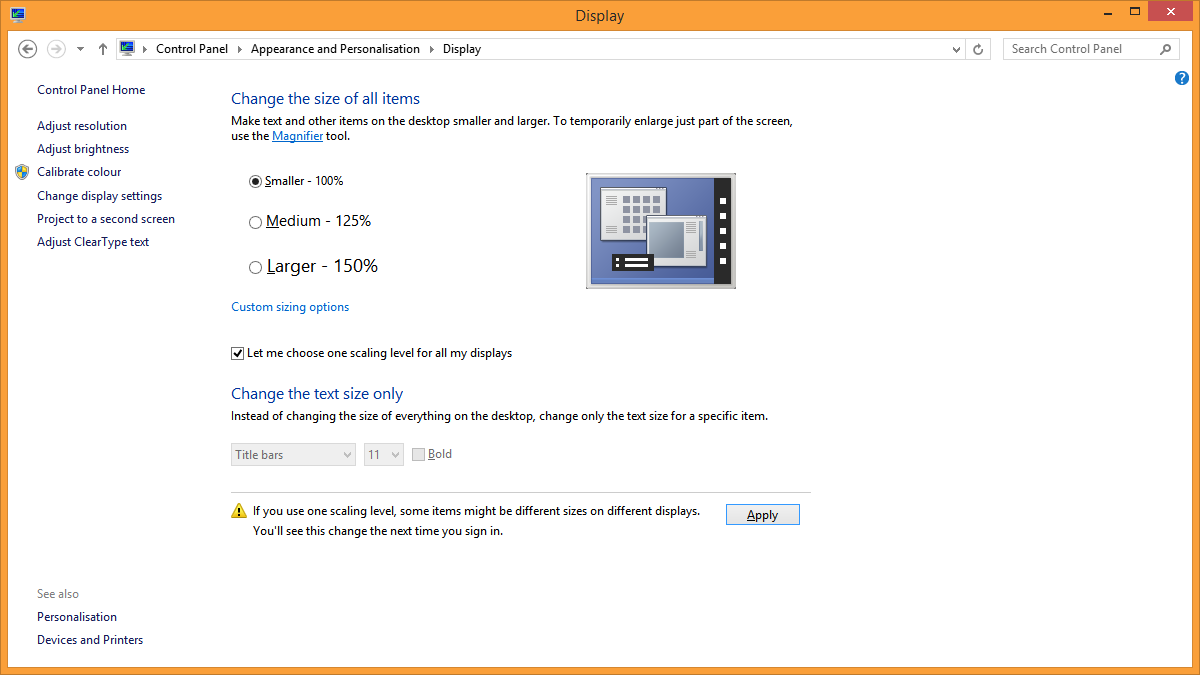
  • Now, you can do this one at a time for applications you select, or one time for every application in a sweep. Head to the Display settings in Control Panel and turn on the custom scaling for all displays with appropriate text size. Once set, automatic scaling will be turned off and all applications display native resolutions. You can always fine tune magnification inside individual applications.

GlobalTextSetting

Result – ultra high resolution DPI nirvana and more stuff on screen with the increased real estate! Your eyes are your responsibility though πŸ™‚ . Hope this helps.

Adios!

Road to Microsoft MVP, Craftsmanship & beyond …

2013 has been a busy year. We all have had our ups & downs and worked on products/technologies that we are passionate about. And it is particularly rewarding when others recognize your passion, efforts to grow our craft, technical prowess & community involvement. I am really honored and humbled to be named a Microsoft MVP in Client Development for 2014.

Now, it is customary to share some feelings/experiences along the road & what it all means. This is, at times tricky, since the subject does bring out our sentiments. This in no way, is a check-off list towards your goals; quite simply, my ramblings on the recent past & some common sense.

The pursuit of craftsmanship & not labels ..

  • The meaning — First, what does it mean to be a Microsoft MVP? It is a recognition of one’s passion around a Microsoft product/platform, technical knowledge & willingness to share/stir community excitement around MSFT technologies. MVP is an award system, with no definitive way to the goal .. and that is the point. We all have our passions & there needs to be flexibility to chart one’s own course. For more information, please visit the the MVP support site or the official blog.
  • The meaning, again — So, let’s rephrase. Since we cannot know everything about everything, the MVP award acknowledges one’s technical knowledge in a specific platform/product/domain. Now, this does not mean that all MVPs are technical rockstars; they definitely know their stuff .. but more importantly, are willing to actively share their knowledge. MVP is a a community award, recognizing significant community contributions around a MSFT platform & helping others. There are no shortcut & one has to be in it for the long haul.
  • The Showmanship — Someone recently said “We’re beyond writing software, we just talk about it” .. this a little funny & sometimes true. In our constant zeal to leave a footprint for other developers & make ourselves known in the community, we could sometimes get in the mode of blogging/speaking about every cool piece of code we write. While this is an extreme example, you should see the value of putting yourself out there. Every developer needs to have a blog .. yes, writing can be painstaking; but there has to be something interesting you worked on recently, something you would like to share. It does not hurt to put out your thoughts and content to contribute on a topic, and it slowly establishes you as a knowledge resource.
  • The Volunteer Army — MVPs often are the public face of Microsoft on a certain technology/product/platform. So, you can see why MSFT would be careful about which volunteers represent them. And that is partly the reason behind choosing folks who are vocal about their passion in the developer ecosystem.
  • The Guilt — This is purely my stance; MVP awards come a little guilt. I personally know way too many awesome developers around, many of whom are much smarter than I am. These developers silently do their awesome work in cubicles & are well respected in their respective teams; but may not be well-known in the community because they are not vocal about what they are up to. This is where comes my next urge ..
  • The step-out — If you are a developer, I honestly urge you to come out of the shell & start interacting with the developer community. I can vouch you will find the experience very enriching. For one, it opens our avenues to learn from like-minded people; developers just like you, who are trying improve their craft every day. Second, it helps you market yourself as a professional & establish your expertise, in ways your resume could never do. So, start by going to your nearest User Group or developer community meeting. Write & speak about what you’re passionate about. Take up writing a book or author a Pluralsight course or be active on a developer forum. I can promise that the tiny guilt of being a showman will vanish in the face of how much you are learning from other developers.
  • Are you social? — Well, this is an ironic question for developers, when we IM our buddy across the cube wall, isn’t it? It doesn’t matter what form of social media you use, as long as you interact with the right folks & getting your information from the right sources. This is pivotal in staying up to date as a developer. Twitter has quickly become one of the best ways to keep up on what’s latest in any technology & engage in conversations with your fellow developers. Bottomline, be social in any way you want, but make sure you are engaged & learning from other developers.
  • Learn, Learn, Learn — This goes without saying, right? The nature of our industry demands us to be in an always-learning mode & there are plenty of free materials to go by. So, voraciously consume anything you can get your hands on – MSDN, StackOverflow, Twitter, eBooks, developer blogs etc. If you think you are the smartest person in a room or in your team, it is time to jump out of the windows & run, so we can keep on learning πŸ™‚
  • Community Investments — Give plenty & you shall receive. Investing in developer community helps us grow as professionals .. network with as many folks as you can & help in whatever you can. Keep the good faith that your efforts are being noticed.
  • The Help — Microsoft has a DPE (Developer Platform Evangelism) program which puts ‘field agents’ closer to developer communities across the world, as well as wonderful MVP Program leads. These are some of the smartest folks you’ll work with .. make sure to get in touch with them in your developer community. I promise – they’ll help.
  • The DON’Ts — Some of this is common sense, but common sense is not that common & we all make mistakes. Let us try to stay away from being rude, vulgar & disrespectful to others – this is plain uncalled for & leaves bad taste amidst a community of sharp brains. Off course, we will have strong opinions about technology; but we can agree to disagree in a respectful manner.
  • The Respect — We can sometimes forget in the Microsoft realm that the world does not spin around us; there are plenty of brilliant developers working on non-Microsoft or Open-Source technologies or projects. And the least we can do is be respectful to all the good work outside our domain of expertise. This shows maturity & professionalism; and gets you respect from the other folks.
  • Believe — Lastly, be confident in your abilities as a developer & genuine in your efforts. MVP or other recognitions may be the goal; but it is the journey that is more important, since it puts your career on a great track. Decide if a label is more important than respect from your peers .. and make peace with it. Be truly passionate about the technology, there is no way to fake this. Believe patiently in folks around you & your good deeds will not go in vain. Best wishes for your journey ..

Truly believe that software craftsmanship is a lifelong journey .. rewards will come along the way.

Cheers for a wonderful 2014!

Local machine connectivity from Windows Phone 8 Emulator

This has been documented before in MSDN and couple of other blogs; but I struggled for a few hours and went through several resources before figuring out what needed to be done as a solution. Just sharing my way of getting stuff to work ..

The Problem:
You are developing a Windows Phone 8 app using the emulator and want to consume/interact with a service/website on local development machine. The server side mimics the backend service powering your Windows Phone app; this could be in the form of a WCF Web Service or a Web API endpoint or in my case, a SignalR Hub for real-time connectivity. This seemingly simple task of connecting the Windows Phone emulator running the Phone app to the service/website on local machine actually turns out to be a tricky one.

The Cause:
Part of the problem lies in the Windows Phone emulator. In the old Windows Phone 7 days, the emulator used the network connection of the development computer; this meant reaching anything on ‘localhost’ was trivial. The Windows Phone 8 Emulator, however, configures itself as a separate device on the network. As a result, an app running on the Windows Phone 8 Emulator can’t connect to the development computer through ‘localhost’. In essence, when you say ‘localhost’ from the Windows Phone 8 app, you are actually referring to the ‘localhost’ of the Windows Phone 8 emulator Hyper-V Virtual machine, and not that of your development machine which is hosting the backend service. This is true if using the inbuilt Casini web server or IIS Express. You now have your local machine and the Windows Phone emulator as two different machines, refusing to talk to each other!

My Case:
As for where I got stuck – I have a simple Visual Studio solution with three projects.

  1. An MVC 3 Web Application which wraps several SignalR Hubs for real-time communication across web & mobile devices
  2. A Windows Phone 8 app which attempts to talk to the SignalR Hubs
  3. A Windows 8 Store app which does the same

The SignalR backend server uses the latest Microsoft.AspNET.SignalR bits and both the clients have the newest SignalR .NET client library NuGet packages. Granted the SignalR server has a Hub called ‘ChatHub’, here’s the kind of code you would expect to write from a .NET 4.5 client:


IHubProxy SignalRChatHub;
HubConnection chatConnection = new HubConnection("http://localhost:53478/");
SignalRChatHub = chatConnection.CreateHubProxy("ChatHub");

await chatConnection.Start();
if (chatConnection.State == Microsoft.AspNet.SignalR.Client.ConnectionState.Connected)
{
      await SignalRChatHub.Invoke("SomeMethodOnServer", "ExpectedParameters");
}

Well, the code above will connect a Windows Store app or for that matter any .NET 4.5 app to the SignalR backend server running on your ‘localhost’. The only exception is the Windows Phone emulator and for reasons we talked above. So, what’s the workaround?

The Solution:
Here are the series of steps I took:

  • Domain dis-join your development machine and turn off any VPN tunnel software. These use special IP Security protocols that the WP Emulator does not like.
  • Check the Windows Phone emulator virtual network switches. A simple ‘ipconfig’ will tell you what the HyperV VM is using for connections; it would most likely be like 169.254.nn.nn.
  • Next step is to configure IIS for external access. Normally, ‘localhost’ can only be hit from the same development machine; so you can see why the WP emulator cannot reach your IIS server. Shut down IIS Express, be brave & hand-edit some config. In your ‘C:\Users\\Documents\IISExpress\config’ folder, sits an ‘applicationhost.config’ file which IIS Express reads. Find your backend service application and tweak the config to allow access from a local IP address. Here’s what mine looks like:

    
    <bindings>
        <binding protocol="http" bindingInformation="*:53478:localhost" />
        <binding protocol="http" bindingInformation="169.254.80.80:53478:" />
    </bindings>
    

    You’ll notice that the local IP address binding I chose falls in the range of what the WP emulator VM would be using.

  • Now, open your service application through Visual Studio in Administrator mode; this is important since IIS will throw an access denied error otherwise. Fire up the backend service and make sure it is accessible from both ‘localhost’ and the specified IP address. This should work regardless of whether you have a website, SignalR Hub, WCF service or a Web API endpoint.
  • One more roadblock exists – even though we configured IIS Express to run our applications from an IP address in addition to ‘localhost’, it will still block requests from other devices on the network. To allow this needs a little tweak of Windows Firewall rules. I quote from MSDN to create a firewall exception for HTTP requests to IIS Express:
    1. From the Windows Start screen, search for Windows Firewall. Click to run the program.
    2. On the Windows Firewall screen, click Advanced settings.
    3. On the Windows Firewall with Advanced Security screen, select Inbound Rules. Then click New Rule.
    4. On the Rule Type page of the New Inbound Rule Wizard, select Port. Then click Next.
    5. On the Protocols and Ports page, enter the port number that IIS Express is using in the Specific local ports field. Then click Next.
    6. On the Action page, select Allow the connection. Then click Next.
    7. On the Profile page, select Private and, if applicable, Domain. Do not select Public. Then click Next.
    8. On the Name page, type a name for the rule. Then click Finish.
  • Now, you should be all set. Fire up the WP emulator and navigate to your website in IE through the IP – should be able to access it. If using a WCF Service or Web API endpoint, make sure to Add Reference using the specified IP address that was allowed in IIS Express. As for my SignalR Hub connectivity from Windows Phone emulator, here’s the code that works:

    
    IHubProxy SignalRMapHub;
    HubConnection mapConnection = new HubConnection("http://169.254.80.80:53478");
    SignalRMapHub = mapConnection.CreateHubProxy("MapHub");
    
    public async virtual void MapIt(MapClient phoneToMap)
            {
                // Fire up SignalR Connection & share location.  
                try
                {
                    await mapConnection.Start();
    
                    if (mapConnection.State == Microsoft.AspNet.SignalR.Client.ConnectionState.Connected)
                    {
                        await SignalRMapHub.Invoke("ShowClientOnMap", phoneToMap);
                    }
                }
                catch (Exception)
                {
                    // Do some error handling.
                }
            }
    

So, there you have it – seamless connectivity to local development machine websites/services from the Windows Phone emulator. Do not forget to switch things to hosted settings once you are satisfied with local testing and ready to push stuff out to production.

Hope this was helpful. Adios!