Wiring up OData usage from Windows 8 Metro App

Sunday afternoon ..

Grilled turkey burgers for lunch + wife busy with dissertation = Full & ready to crank out some solid code for a few hours. I rub my hands and sit down to knock off a pending project work. At hand, is a Windows 8 Release Preview Metro app that we are building for a client. Traditional technician-out-with-a-tablet setup; so offline access & later data sync with server DB is called for. The immediate answer is OData, as a service on top of backend Database .. seamlessly & asynchronously read/write data through plain HTTP. I have done OData CRUD numerous times in Windows Phone, web or Silverlight .. this should be a piece of cake!

Yeah, right .. what ensued was a few hours of frustration, trying to stitch together the moving pieces & beta software hurdles to overcome. So, here’s my attempt to save someone a few hours .. don’t you love writing blog posts which will be obsolete in a few weeks? 🙂 Here’s the tale:

  • First, the data store. Simple relational data. SQL Azure DB with appropriate Tables. Done.
  • Next, expose the data through an OData service layer. SQL Azure Labs had this one click approach to setting up an OData service on top of existing DBs; not sure when that is coming back. So, custom service it is. Two step process to produce an OData service: ADO.NET Entity Data Model (EDM) pointed to DB Tables + WCF Data Service exposing the generated entities. If you need to do full CRUD, make sure you are configuring each entity with the right permissions.
  • Host the service in IIS, test & host in Azure. Done.
  • Next, integrate in Windows 8 RP Metro app .. should have been simple if I had known what was supported. By the way, if you started writing your Metro app in Consumer Preview in XAML/C#, you’ll find a sleepless night with breaking changes in Release Preview. Expected, but awkward. Just restart fresh project & port over artifacts.
  • Turns out, I had gone HERE to get Windows 8 RP. Right next to the RP ISO is the link to download the Dev tools, which happen to be VS 2012 Express for Windows 8. Point is, know what you are running.
  • Next, grab OData service URL & hope against hope that Add Service Reference would work .. well, it didn’t. Turns out, not supported in VS 2012 Express.
  • No problemo .. been there. So, immediately revert back to the DataSvcUtil.exe tool for Proxy generation. Yup works just fine in .NET 4.5. Check out THIS post if you need the steps.
  • Grab the generated proxy file & drop in VS project. Voila, you have references to your OData entities in code. One problem — can’t easily work with them!
  • The issue is, Windows 8 Metro apps written on top on WinRT would not allow you to add references to two super-useful class libraries — System.Data & System.Data.Services.Client. These two are the key to working easily with an OData service. Without them, you’ll be left hand-coding the HTTP requests .. Yuck!
  • Has no one figured out a way? Well, sure .. and it is Phani Raju from MSFT. The very person whose bits we’re seeing in present VS 2012 RC. Check out his POST explaining how to consume the Netflix OData feed.
  • Upon download of the sample code, you should see the following DLL references in the project:
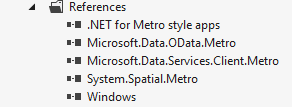
    References Libraries

  • So, in addition to our generated proxy, could we just grab these DLLs & call it a day? Well, sure it compiles and we can use DataServiceContext/DataServiceCollection; but you get runtime exceptions around Type initializers. Closer reading of Phani’s post & comments reveal that the bits have changed some & not compatible with VS 2012 RC any more. Updated libraries have been shipped; but as a part of VS 2012 RC Ultimate!
  • Aha, so that’s a problem .. Adding a Service Reference is not yet supported in the VS 2012 RC Express for Windows 8 Metro apps only; we need to get the Ultimate edition from HERE.
  • One caveat – Do not install VS Ultimate on top of the Windows 8 Metro Express version; references still seemed broken. So, uninstall what you have & get the fresh full copy of VS 2012 RC Ultimate.
  • Now, you should be set. And guess what, no more manual proxy generation or dropping DLLs. Simply grab the URL of your WCF/OData service and do Add Service Reference. Should work.
  • And when you do successfully add reference, take a look at your project references .. yep, it has added back the same 3 DLLs we saw above; only with updated bits. Voila!
  • And now, you can add references to System.Data & System.Data.Services.Client in your code. These seem to be non-accessible by default; upon service addition, the newly dropped DLLs open up these namespaces.
  • That’s it: Now you can create a DataServiceCollection to pull down your OData entities and do full CRUD operations, if allowed by the data source. See this POST if you need pointers on how to do CRUD against OData.

Pretty simple in the end. Just that when you are dealing with beta software, you may have to tinkle around little bit. Hopefully, this can save someone a little time .. to go enjoy summer. But also, go ahead and add cloud/service support to your Windows 8 Metro apps!

Adios!

Windows Phone SignalR Helper!

This may just be the shortest post, with the most amount of work going into it 🙂

So, if you are passionate about Windows Phone development, a little something on the .NET web stack should interest you. It is called SignalR — An async signaling library for persistent connections between server & client. The real fun begins when you consider Windows Phone applications as client, with a SignalR powered server backend .. you get real-time connectivity on Windows Phone!! And tons of possibilities, like Chat, Maps, Game Scores, Stock Tickers, Object Exchange etc.

I was quite excited by the opportunities and took a stab at writing a Helper library with a demo Windows Phone application & a SignalR backend server. Since SignalR is open-source, along with most knowledge around it, why not this? So, all of my work is on CodePlex, ready to view/download/extend. A lot more work needs to go in to improve the libraries & may be make NuGets sometime. Please give it a shot .. download & hit F5. Would appreciate any feedback!

Windows Phone SignalR Helper
On CodePlex: http://wp7signalrhelper.codeplex.com/
Demo Video: Added to my WebCasts

Thank you & Adios!

10 Quick Real-World WPDev Performance Tuning Tips

Let us begin by … oh heck; we are trying to cut the fluff & fine-tune our Windows Phone applications, right? 🙂

So, here goes:

  • Images:
  • This should be common knowledge .. Windows Phone handles JPGs much quicker than PNGs. So, unless we need transparency, let’s stay away from unnecessary PNGs. Next comes the Resource vs Content dilemma. Resources adds bulk to DLL and Content adds files to the XAP. Larger DLL will add to App startup time; but render images quicker than first-time file access for Contents. There is no easy thumbrule here; depends on what fits your app. I personally see better performance with a Resource if app startup time isn’t being hindered much, and if using an image many times as panorama/page backgrounds. Much more details HERE.

  • DataContext/Binding:
  • If the XAML page has data binding (specially in case of panoramas), I find it odd to provide context to XAML on Page_Loaded event. Why not on Constructor, if possible? Not that Constructors need to be bloated; but why wait for the Loaded event if you can data bind right away and allow rendering? Even if I am firing off heavy operations on background thread, I prefer data binding (with cached data) before anything else. Data binding on Loaded/NavigatedTo should be reserved for times when on back navigations, you truly want updated data source or two-way binding.

  • App Startup:
  • Let us do everything possible to not hinder the rendering of the first frame page. Shoot for minimal code in App Constructor/Launching; similarly in MainPage with simple XAML layout. Progress indicators are great after first page renders; consider if the SplashScreen is really needed. If data binding needs dynamic data, consider overlaying the page contents with some progress indicators until ready. If binding to static data but fetching fresh data in background, I think it’s ok to load page and warn the user that he is looking as stale data. Great article HERE.

  • Threading:
  • Let’s make sure we understand the subtleties of threading and never ever block the king, the UI thread. Composition threads handle animations and off-load work to GPU; so not suitable for us to do any more heavy-lifting. Let’s make friends with the Background thread/worker (HERE‘s how) and push off anything we can to this guy. Until Async-Await become more mainstream, let us be diligent about marshaling stuff back to the UI thread through shared variables or Dispatcher.BeginInvoke().

  • Network Calls:
  • 4 thumbrules I try to follow: Through Background thread/HTTPWebRequest. Grab more in one call, instead of making many API calls. Cache anything possible. Check for connectivity & degrade gracefully.

  • Isolated Storage:
  • If not close to 90MB memory restriction, I try to minimize hits to Isolated Storage for disk access. It’s ok to have a giant object & serialize/deserialize in one go. And remember, encryption/decryption is expensive; so reserve for the super-sensitive stuff.

  • Performance Tools:
  • Let’s use what’s at our disposal – the Windows Phone Performance Analysis Tool (HERE) for detailed performance walkthrough and the Frame Rate Counters to figure out the bottlenecks. I try to watch out for huge memory footprints, like a high resolution image loaded in memory, but displayed as a small picture.

  • Controls:
  • Yes, we would love our Apps to be flashy; but complex & nested XAML comes at a price .. so let’s try to keep our layouts simple. Panoramas render all panels with data binding at once, which can take a toll on memory. Deferred panel loading and background bitmap as Resource are things I try doing when using Panoramas, or considers Pivots when possible. Things like toolkit HubTile controls also add a little bulk; make sure to stop animations on non-visible areas. Maps & WebBrowsers are expensive too; consider if the corresponding Tasks fit what you are trying to do.

  • Low-Cost Device Optimization:
  • Taking the marketing fight downstream was needed; hence comes the so-called lower devices with 256MB RAM. For the most part, we should be fine if following performance best practices for regular Windows Phone devices. Just a few additional things for us to keep in mind: Let’s not use Background Agents (can’t depend on them anyways since they can be disabled by user or overuse); watch the 90MB memory footprint; no looping backstack navigation; use the 256MB emulator for lowest common factor and let’s do all the things above to make our apps performant in low-memory devices. Best possible checklist HERE.

  • Common Sense:
  • The cliched term is true and lack of common sense on our part can have expensive performance repercussions. Or may be, this is just me :). Late night coding sessions are great for ego & getting stuff done; but let’s sleep on it & review our work the next day for sanity checks. I have done stupid things like setting a background image on a panorama/grid & then the same one on every panel; result – double the brush memory gets loaded & counted against the app footprint. A responsive UI wins the battle any day over a complex layout. No unnecessary namespaces, proper use of threading & resources and general common sense = wonderfully performant Windows Phone apps. And a proud you, right?

Would really appreciate any feedback. Tell me what I missed. What techniques do you use?

Adios!