Styling local HTML for WebBrowser display

Recently I had to work on a cross-platform mobile app, meant for internal use in our company. The iOS & Android versions were ready to ship; Windows Phone 7 just could not lag behind. It was mostly static content (lots of it) to display and centralization of data was important for content updates. Even before the Windows Phone app was started, much of the content was centralized for mobile device consumption and the format was HTML. Since it was mostly textual data with bulleted sections, I guess it was decided to marry pure data with some display pieces.

So, now the challenge was to design a Windows Phone 7 app that had rich metro UI; but mostly rendered HTML! The control of choice to display all this data was the WebBrowser control, which takes remote or local HTML and renders content using the IE shell in a Windows Phone. Thankfully, the content only had HTML snippets of data and not a full HTML DOM that the WebBrowser renders; so there was an opportunity to style some of the content to match the theme of the Windows Phone app. So, essentially, right before we hand-off the local HTML to our WebBrowser control, we got to give it some header/metedata or styling information.

I cannot post screenshots of the WP7 app for confidentiality; but here’s some code in use:


    private void webBrowserControl_Loaded(object sender, RoutedEventArgs e)
    {
       webBrowserControl.NavigateToString(FormatHTML("Local_HTML_Filepath"));
    }

    private string FormatHTML(string filePath)
    {
       string result = string.Empty;
       var ResourceStream = Application.GetResourceStream(new Uri(filePath, UriKind.Relative));

       if (ResourceStream != null)
       {
          Stream myFileStream = ResourceStream.Stream;

          if (myFileStream.CanRead)
          {
              using (StreamReader myStreamReader = new StreamReader(myFileStream))
              {
                  StringBuilder htmlText = new StringBuilder();
                  htmlText.Append("<html><meta name='viewport' content='width=400,user-scalable=no'/>");
                  htmlText.Append("<body bgcolor='ThemeColor'>");
                  htmlText.Append("<font color='SomeFontColor' size='SomeSize'>");
                  htmlText.Append("<link rel='stylesheet' type='text/css' href='someURI'>");
                  htmlText.Append(myStreamReader.ReadToEnd());
                  htmlText.Append("</font>");
                  htmlText.Append("</body>");
                  htmlText.Append("</html>");
                  result = htmlText.ToString();
               }
          }
       }

       return result;
     }

Now, before you start thinking this is all too basic, there are couple of very important caveats. First, the HTML rendered by the webbrowser control cannot have a transparent background ; so your hopes of preserving the theme of the underlying XAML page are futile. Also, any URI references that you make towards styling the content cannot come from local application package !! For example, if you have an image that you package as a resource/content in your Windows Phone project, it cannot be used as a background image for your HTML content. Needless to say, I find this restrictive and had to fight my way around this. If someone knows a way to use local resources for styling, please please drop me a comment.

So, essentially we have two options for referencing media or CSS for styling our HTML for the WebBrowser to render. One — make the resource available on the internet; that is, through an unique absolute HTTP URL. Or Two — store the resource as a file in Isolated Storage on the phone and then use the relative filepath from isolated storage in your CSS. These are the only two ways I know how to reference an external resource while styling HTML. Like I said, I would love to hear how other’s are doing this or any other ideas.

Adios!

Another cloud enabled WP7 Wx app ..                  Part Trois: The Cloud Service

This post is a continuation of Part 1 (here) & Part 2 (here) of the series on setting up a cloud-enabled Weather app for Windows Phone.

By now, we have a fully working Windows Phone app which allows the user to pull up weather forecasts for any city of their choice. We also Push Enabled the app so that any number of cities can be pinned to the start screen using the Mango secondary Live Tiles. Now, the only thing left to do is to have some sort of a service running in the cloud or some server that is able to keep track of all these cities the user has chosen to pin &  for the service to be able to push out live weather feeds at pre-defined/customized intervals. Now, for hosting such a service, I chose to utilize a free subscription I had in Azure; this could just as well be done on any machine running IIS with open ports.

Let’s add my thoughts here on the utilization of Azure cloud infrastructure for supplementing a mobile solution. As Windows Phone & other mobile platforms have shown us, smartphones do a lot with their small batteries & any work we can offload from it’s small processing power, helps in increasing battery life & hence user experience. As such, most connected Mobile solutions could compromise of a client running on the phone & some cloud support which does the repetitive heavy-lifting for the phone, sparing it from polling. Now, Windows Azure with its vast infrastructure for scalability could provide the perfect hosting solution for cloud service support; but there are some considerations. If you have MSDN subscription, you get some Azure processing & storage time free. After some benefit upgrades earlier this year, this Azure subscription can come in very handy, as you could really keep a couple of services with storage & decent bandwidth requirements running free 24/7 all month long. However, if your MSDN is paid for by your employer, and you are using it to host a cloud service that will empower your mobile app through which you make money, you are in shady territory 🙂 So, my advice would be to check subscription & legal details to make sure you are safe. Another option is to flat-out pay for Azure services if you know your mobile app is that good & you will need the cloud support. My experience says that you need to be able to justify a $30 cost per month to be able to break even on Azure costs; be it through a paid app or advertisements. The $30 number though could fluctuate a lot based on what the needs are for your service hosting; it is simply based on my experience on running a simple service in Azure on 2 small instances & using some table storage.

So, with my babbling out of the way, here is the Azure hosted cloud service that acts as the backend for our Weather app, as it appears in the Azure portal. Now, this is set up to feed the Windows Phone Live Tiles; however, please take note that it can easily be set up to support iOS & Android Push Notifications. The Azure Toolkit for WP7 (here) already support iOS notifications, with Android support coming soon.

Azure WeatherLite Backend Service

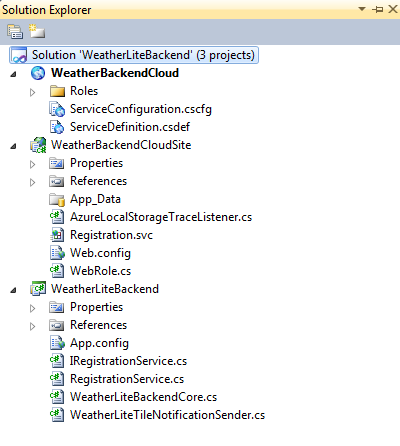
The highlighted URL is where we get to hit up Azure to access the hosted service. This is what we had used to add a service reference for building proxies in our Windows Phone solution. With the metadata exposed, the phone app could call into any methods supported by the service. So, let’s see how we set up the cloud service. Here’s the project setup for the backend VS Solution:

WeatherBackend Project

WeatherBackend Project


So, our cloud backend solution is created using the Azure cloud solution template in VS & is made of 3 projects:

  • WeatherBackendCloud:
    This is the Azure wrapper project that includes the deliverables from the other two projects & provides for deployment settings for our service in the cloud.
  • WeatherBackendCloudSite:
    This is sort-off the web front-end of our service; essentially the WCF service is hosted inside of IIS as a web application. This project provides the “svc” WCF endpoint for our service and a 404 for everything else. Check out this wonderful video tutorial by Aaron Skonnard on how to set up your WCF service to run in IIS (here).
  • WeatherLiteBackend:
    This is our core WCF service that exposes the methods that our Windows Phone app calls into. This project includes the core processing of fetching Weather from Yahoo, packaging it up in a Push Notification payload & sending it out in an HTTP Post to the phone’s unique Channel URI in MPNS.

Now, about some implementation. The interface in our WCF project defines a standard for some methods exposed to consuming applications. The “Register” call that our phone app makes to let the cloud service know about Channel URI, city of choice & Secondary Live Tile ID has been defined as such:


    [ServiceContract]
    public interface IRegistrationService
    {        
        [OperationContract, WebGet]        
        void Register(string channelURI, int WOEID, string liveTileURI);
    }

The actual implementation of our Registration service simply hangs on to the request parameters from the phone, performs core processing to fetch weather & builds a payload for submitting to MPNS. Since this is just for demo purposes, I am storing the subscriber’s Channel URIs in session memory, since the Registration service has been defined as a “Singleton” class. For any cloud services headed for Production, you would have to consider storing the URI & other needed subscriber details in Azure table storage or SQL Azure. Here’s what I am doing:


    [ServiceBehavior(InstanceContextMode = InstanceContextMode.Single)]
    public class RegistrationService : IRegistrationService
    {
        public void Register(string channelURI, int woeid, string liveTileURI)
        {
           // Add subscriber details to some list.

           WeatherLiteBackendCore coreEngine = new WeatherLiteBackendCore();
           coreEngine.PerformCoreProcessing();
        }
    }

    public class WeatherLiteBackendCore
    {
        public void PerformCoreProcessing()
        {
            // Fetch current list of Subscribers.
            SubscriberList = RegistrationService.GetSubscribers();

            if (SubscriberList == null || SubscriberList.Count == 0)
                return;

            foreach (Subscriber WP7Client in SubscriberList)
            {
                // Pick up the URIs.
                subscriberChannelUri = new Uri(WP7Client.ChannelUri);
                subscriberLiveTileUri = new Uri(WP7Client.LiveTileUri);

                // Fetch weather for registered location.
                // Send out Tile update payload to MPNS.                
            }
        }
    }

Our “WeatherBackendCloudSite” simply sets up the service endpoint to use the “RegistrationService”; here’s the config in “Registration.svc”:


     <%@ ServiceHost Language="C#" Debug="true" Service="WeatherLiteBackend.RegistrationService" %>

Now, the “PerformCoreProcessing()” method is also invoked once every hour (set at application level) to get a list of all WP7 subscribers & send out appropriate live weather feeds to all. Also, the “WeatherLiteTileNotificationSender” helper class builds the requisite payloads required to send out the Live Tile updates. Please see my earlier post (here) on exactly what the payloads need to look like for the Windows Phone OS to process the incoming data bits as Live Tiles or Toast notifications. Here’s the old-school way of building a secondary Live Tile payload & submitting to MPNS for delivery to subscribing phones:


        private static byte[] PrepareTilePayload()
        {
            MemoryStream stream = new MemoryStream();
            XmlWriterSettings settings = new XmlWriterSettings() { Indent = true, Encoding = Encoding.UTF8 };
            XmlWriter writer = XmlTextWriter.Create(stream, settings);
            writer.WriteStartDocument();
            writer.WriteStartElement("wp", "Notification", "WPNotification");
            writer.WriteStartElement("wp", "Tile", "WPNotification");            
            writer.WriteStartAttribute("ID");
            writer.WriteValue(appropriateLiveTileURI);
            writer.WriteEndAttribute();
            writer.WriteStartElement("wp", "BackgroundImage", "WPNotification");
            writer.WriteValue(appropriatebackgroundImageUri);
            writer.WriteEndElement();
            writer.WriteStartElement("wp", "Count", "WPNotification");
            writer.WriteValue(appropriateTemp.ToString());
            writer.WriteEndElement();
            writer.WriteStartElement("wp", "BackTitle", "WPNotification");
            writer.WriteValue(appropriateCity);
            writer.WriteEndElement();
            writer.WriteStartElement("wp", "BackContent", "WPNotification");
            writer.WriteValue(appropriateWeatherCondition);
            writer.WriteEndElement();
            writer.WriteEndDocument();
            writer.Close();

            byte[] payload = stream.ToArray();
            return payload;
        }

        private void SendMessage(Uri channelUri, byte[] payload, NotificationType notificationType, SendNotificationToMPNSCompleted callback)
        {  
            try
            {
                // Create and initialize the request object.
                HttpWebRequest request = (HttpWebRequest)WebRequest.Create(channelUri);
                request.Method = WebRequestMethods.Http.Post;
                request.ContentType = "text/xml; charset=utf-8";
                request.ContentLength = payload.Length;
                request.Headers[MESSAGE_ID_HEADER] = Guid.NewGuid().ToString();
                request.Headers[NOTIFICATION_CLASS_HEADER] = ((int)notificationType).ToString();

                if (notificationType == NotificationType.Toast)
                    request.Headers[WINDOWSPHONE_TARGET_HEADER] = "toast";
                else if (notificationType == NotificationType.Token)
                    request.Headers[WINDOWSPHONE_TARGET_HEADER] = "token";

                request.BeginGetRequestStream((ar) =>
                {                   
                    Stream requestStream = request.EndGetRequestStream(ar);
                   
                    requestStream.BeginWrite(payload, 0, payload.Length, (iar) =>
                    {                      
                        requestStream.EndWrite(iar);
                        requestStream.Close();
                        
                        request.BeginGetResponse((iarr) =>
                        {
                            using (WebResponse response = request.EndGetResponse(iarr))
                            {                               
                                // Give back response to callback method, if any.
                            }
                        },
                        null);
                    },
                    null);
                },
                null);
            }
            catch (WebException ex)
            {
                // Do something.
            }
        }

That’s about it with the code. Once everything compiles & works with locally hosted service, we simply right-click on the cloud wrapper project & allow it to create Azure packages locally. This generates two files in the Bin/Publish directory of the Azure solution — one .cscfg file containing configuration & one .cspkg package container containing the deployable deliverables of the project. Now, we simply create a new hosted solution in Azure & upload these two files into a Production environment to expose the cloud service endpoint for our Windows Phone application. We then have a service running in Azure that the phone application can reach out to if the user chooses to pin a city’s weather to start screen & one that pushes out live weather feeds to the secondary Live Tiles. Voila!

Hope this series was helpful. Please drop comments if you see something that could be done better or have any other thoughts.

Adios!

Another cloud enabled WP7 Wx app ..                  Part Deux: The Live Tiles

This post is a continuation of Part 1 of the series (here).

So, we now have a basic Weather app that allows the user to look up live weather & a little forecast for his/her selected city. But, what good is that, unless we can pin the app to the start screen & then get live Weather feeds for the selected city, without having to launch the app! Now, sure we can enable that for Windows Phone using regular techniques of Push Notifications & Live Tiles. However, every time I show off something like that, the next obvious question is — What if I live in City A & work in City B and I want live weather updates for both cities? Or, if you are like me, you always keep Hawaii weather pinned so you feel good & look forward to your vacation 🙂 Now, there is something we could possibly work out using the Windows Phone 7.0 OS & toolsets. May be our cloud service could take in multiple cities & push out live weather for all cities in cycles? But, the weather app on the phone still has one pinned Live Tile and it is kinda cumbersome to display so much changing information in one Tile. Same problem crops up if you want to follow two live flights or numerous other situations. Hmmm…

Thankfully, Windows Phone Mango update has the near-perfect way of solving this issue. In addition to the pinned Application Tile (which is still just one & done manually by the user), we can now have multiple secondary Tiles for each app. These tiles are just like pinned Live Tiles on the start screen, but only better since they are created & controlled programmatically from the app itself! The windows phone team heard some feedback about the pain to stand up a service just to update a Live Tile when the app itself knows all the data; so now we can! And the best part — just as the Secondary Live Tile name suggests, each of these secondary Tiles behaves exactly like Application Tiles, have a unique URL identifier and most importantly, can be updated from the cloud using MPNS!! Voila .. now we can have multiple parts of the application pinning themselves to the start screen and receiving Live Tile updates through Push Notifications. This helps in situations like following weather of multiple cities, following multiple live flights or pinning various news sections for a news app. More detailed information about Application & Secondary Live Tiles can be found (here).

Apart from the programmatic control over secondary Live Tiles, the tiles themselves convey a little more information. In addition to the usual front of the Tile (with count, title & background image), the Tiles also flip to expose a back side of the tile. This has the potential for carrying some back-content text, title & another background image. So, information conveyed by the start screen Tiles can literally be doubled! And the OS makes sure the secondary tiles pinned from the same app don’t do their flip animations at the same time .. nice little trick.

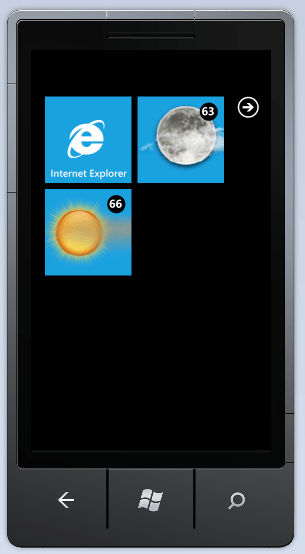
So, back to our weather app. Now, each city the user cares about can be pinned to the start screen, providing live weather feeds that are easy to follow, each being separate. Our little implementation looks like this:
Secondary Live WX Tiles with Temp

Secondary Live WX Tiles with Temp

Secondary Live WX Tiles with Conditions

Secondary Live WX Tiles with Conditions


You will notice that with the extra real estate offered by the back of the tile, we were able to split up the weather information: current weather image & temperature in the tile front and current conditions & city name in the back of the tile. You can, off course, design your secondary live tiles to carry any information just the way you want. Here is some code to get the above working on clicking the “pin to start” menu as below:

Pin to Start Menu

Pin to Start Menu


   // Check the existence of pinned tile.
   var shellTile = ShellTile.ActiveTiles.FirstOrDefault(x => x.NavigationUri.ToString().Contains("WOEID=" + this.currentWOEID));

   if (shellTile != null)
   {
       return;
   }

   // Create the WX tile data with appropriate properties.
   var tileData = new StandardTileData
   {                
       BackgroundImage = this.currentWxImage,
       BackTitle = this.currentCity,
       Count = this.currentTemp,                
       BackContent = this.currentWxCondition
   };

   // Create the secondary tile on start screen.
   ShellTile.Create(new Uri("/MainPage.xaml?WOEID=" + this.currentWOEID, UriKind.Relative), tileData); 

With the above code firing, our app is immediately deactivated & the user is taken to the start screen to see the secondary Live Tile. Now, every city that the user cares to store & check weather for is represented by an unique WOEID (as explained in Part 1 here). Now, for every secondary Live Tile that is pinned, there has to be a unique way to identify the Tile; so why not simply use the city’s unique WOEID for the tile as well?

You will notice that as we created the ShellTile programmatically, we gave it a unique URL — “/MainPage.xaml?WOEID=something”. This serves a nice dual purpose. One, it identifies each secondary Live Tile uniquely. And since we can check the existence of secondary tiles programmatically, we get to tweak our app accordingly. For example, if we find that a city is already pinned to the start (proven by the existence of a secondary Live Tile with the same WOEID parameter), our menu option should possibly say “unpin from start” so the user may delete following that city.

Another awesome effect of uniquely identifying our Tiles with URL parameters is that it gives us a way to respond specifically when the user launches our app by hitting one of these Live Tiles. If the user has 2 cities pinned to the start screen, launching the app by hitting the Live Tile for City A should take the user directly into weather details for City A, right? Yep, we can do that because the URL parameters are passed directly into the app as we navigate back to the URL-linked page. This provides the developer with a way to respond to page events and may be take appropriate action based on the URL parameters coming in. For example, in our case, the MainPage.xaml is the weather UI for a given city. Much like the page_load events in the ASP.NET webforms world, we get to respond and take unique actions based on incoming parameters. Here’s some code:


        protected override void OnNavigatedTo(System.Windows.Navigation.NavigationEventArgs e)
        {
            base.OnNavigatedTo(e);

            if (NavigationContext.QueryString.ContainsKey("WOEID"))
            {
                if ((App.Current as WeatherLiteForMango.App).LocationList.Count > 0)
                {
                    foreach (App.LocationStuff existingLoc in (App.Current as WeatherLiteForMango.App).LocationList)
                    {
                        if (existingLoc.WOEID == NavigationContext.QueryString["WOEID"])
                        {
                            locationNumber = (App.Current as WeatherLiteForMango.App).LocationList.IndexOf(existingLoc);
                            break;
                        }
                    }

                    // Fetch WX data & fill.
                    this.GetYahooWeatherAsync(Convert.ToInt32((App.Current as WeatherLiteForMango.App).LocationList[locationNumber].WOEID));
                }
            }
            else
            {
                if ((App.Current as WeatherLiteForMango.App).LocationList.Count > 0)
                {
                    // Load the last location in list.
                    locationNumber = (App.Current as WeatherLiteForMango.App).LocationList.Count - 1;

                    // Fetch WX data & fill.
                    this.GetYahooWeatherAsync(Convert.ToInt32((App.Current as WeatherLiteForMango.App).LocationList[locationNumber].WOEID));
                }
                else
                {
                    // Ask user to enter new locations.
                }
            }
        }

So, you see how we take the user directly to a city’s weather if coming from a secondary Live Tile or just load the last visited city’s weather if we have any. Pretty cool right? I can think of so many instances where such direct deep-linking is going to induce rich user experience.

Now, all these secondary Live Tiles will not be of much use, unless they relayed live weather updates from some cloud service. Thankfully, even in Mango, the way we subscribe to Live Tile notifications has not changed much. We use the same techniques to either find a unique MPNS channel or create/save one if needed. Here’s some code to handle channels for Push Notification subscriptions:


        // Try to find existing Channel from Isolated Storage or create new one.
        if (!this.TryFindChannel())
           this.DoConnect();

        private bool TryFindChannel()
        {
            bool gotcha = false;

            // Look for saved Channels in Isolated Storage.
            using (IsolatedStorageFile isf = IsolatedStorageFile.GetUserStoreForApplication())
            {                
                if (isf.FileExists(somePredefinedFileName))
                {                    
                    using (IsolatedStorageFileStream isfs = new IsolatedStorageFileStream(somePredefinedFileName, FileMode.Open, isf))
                    {
                        using (StreamReader sr = new StreamReader(isfs))
                        {
                            string uri = sr.ReadLine();
                            httpChannel = HttpNotificationChannel.Find(somePredefinedChannelName);

                            if (null != httpChannel)
                            {
                                if (httpChannel.ChannelUri.ToString() == uri)
                                {
                                    // If Channel is found, make necessary Subscriptions
                                    this.SubscribeToChannelEvents();
                                    this.SubscribeToNotifications();
                                    this.SubscribeToService();
                                    gotcha = true;
                                }
                                sr.Close();
                            }
                        }
                    }
                }               
            }

            return gotcha;
        }

        private void DoConnect()
        {          
            // First, try to pick up existing channel.
            httpChannel = HttpNotificationChannel.Find(somePredefinedChannelName);

            if (null != httpChannel)
            {
                this.SubscribeToChannelEvents();
                this.SubscribeToService();
                this.SubscribeToNotifications();
            }
            else
            {
                // Create the new channel.
                httpChannel = new HttpNotificationChannel(somePredefinedChannelName, "WeatherLiteBackendService");

                this.SubscribeToChannelEvents();
                httpChannel.Open();
            }           
        }


        private void SaveChannelInfo()
        {
            // Save off Channel Info into Isolated Storage as a file.
            using (IsolatedStorageFile isf = IsolatedStorageFile.GetUserStoreForApplication())
            {            
                using (IsolatedStorageFileStream isfs = new IsolatedStorageFileStream(somePredefinedFileName, FileMode.Create, isf))
                {
                    using (StreamWriter sw = new StreamWriter(isfs))
                    {                        
                        sw.WriteLine(httpChannel.ChannelUri.ToString());
                        sw.Close();                        
                    }
                }
            }
        }

And, if we did end up creating a new MPNS channel, we wait for the “httpChannel_ChannelUriUpdated” event so that we subscribe to a few things with the channel URI. Notice that the same API — BindToShellTile(), that we had used before Mango can now be utilized to subscribe all the secondary Live Tiles to receiving Push Notifications. This now essentially tells the OS — Hey, be ready to receive any Tile updates for this app! Here’s some code:


        private void SubscribeToChannelEvents()
        {
            // Register to UriUpdated event - occurs when channel successfully opens.
            httpChannel.ChannelUriUpdated += new EventHandler(httpChannel_ChannelUriUpdated);
        }   

        void httpChannel_ChannelUriUpdated(object sender, NotificationChannelUriEventArgs e)
        {
            // Once the client has successfully created a channel with MPNS, save & subscribe.
            Dispatcher.BeginInvoke(() => this.SaveChannelInfo());           
            this.SubscribeToService();
            this.SubscribeToNotifications();
        }     

        private void SubscribeToNotifications()
        {
            // Bind to Tile Notificaions.            
            try
            {
                if (httpChannel.IsShellTileBound != true)
                {
                    httpChannel.BindToShellTile();
                }
            }
            catch (Exception)
            {
                // Do stuff.
            }
        }

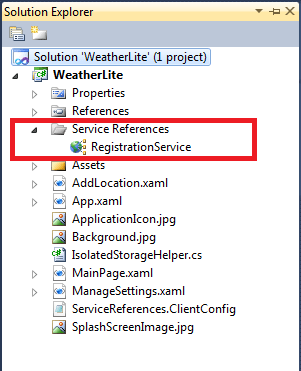
Now, I need to mention something we shall cover in the next post — our cloud service backend running in Azure. For now, let us just assume that we have a service running somewhere which is willing to accept requests from our app & push out live weather updates to our secondary Live Tiles. The cloud service is referenced within our phone client project so that we get the proxy made & can make method calls against this service. Here’s the simple set-up:
Weather Project

Weather Project


Having access to our cloud service’s methods, we can now easily let the service know the details it needs to push our live weather updates to MPNS, and eventually to the phone client as Live Tiles. One important thing to remember is that our cloud service needs to know exactly which Live Tile to update for each city! So, in addition the channel URI & the city’s WOEID, we also need to let our service know about the unique URL that identifies the secondary Live Tile we want the service to update.


        private void SubscribeToService()
        {
            // Reference to backend service.
            RegistrationServiceClient client = new RegistrationServiceClient();            
            client.RegisterAsync(httpChannel.ChannelUri.ToString(), this.currentWOEID, this.currentLiveTileURI.ToString());
        }

That’s it! Now, our secondary Live Tile can stay happily pinned to start screen and our cloud service should wake up from time to time (based on how you configure it) and send out Live Tile updates with latest weather. Not too difficult; just a few moving pieces. Hope this was helpful.

Adios!