

June 2010. I decide that one of the first WP7 apps I should do is surely a weather app. And with the whole “It’s not Sunny & 73” jab against the iPhone weather app, one just had to have cloud support for “glance & go” weather, right? :). Then, after Windows Phone launched, I took one look at the Weather Channel app. Oops! Off course, mine didn’t stand a chance against their rich UI! So, I never quite bothered submitting the weather app; but I still use it to demo Push Notifications from the cloud. So, that is what we shall do in this post; remember though, this was before we had the Push Notification Helpers & the Azure Toolkit. So, this will all be down to rather basic details; sometimes it may be worth knowing how stuff works just out of the box.
So, we shall strive for a really basic Weather app that shows current/forecast weather for a bunch of places that the user is interested in. There are off course several free sources of weather data; but few get as simple as the Yahoo API. So, let us head over (here) for the Yahoo Weather feed. It essentially a semi-RESTful API that we make a HTTP GET call against, passing in a WOEID & unit of measurement. The Where On Earth ID (WOEID) is simply a unique indicator of the Lat-Long of a place on earth. If you look up the weather of any city on Yahoo, the WOEID is in the URL or it can also be derived from geo-coding an address.
Here is a basic look at what we are striving to build:
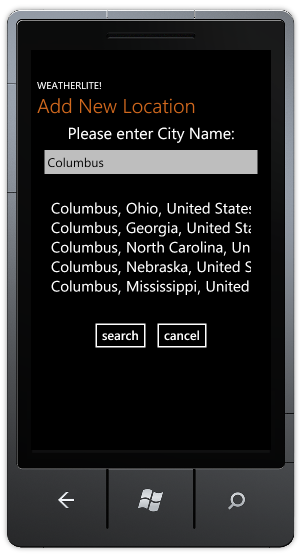
Add City

Weather
So initially, we ask the user what city or town they want weather for. We fire off the user’s search criteria to Yahoo’s service to come back with a scrollable list of locations with State & Country information. We bind this return data to a Listbox and allow the user to pick the right one; not fail-proof, but you get the idea. Here is what we want to hang on to for each city the user cares about; and this is defined in our global App.xaml.cs file:
        public class LocationStuff
        {
            public string City { get; set; }
            public string State { get; set; }
            public string Country { get; set; }
            public string WOEID { get; set; }
        }
        // Registering for the API is needed.
        string yahooGeoServiceURL = "http://where.yahooapis.com/v1/places.q('" + user-typed-city + "');start=0;count=5?appid='Your Developer ID'";

        var client = new WebClient();
        client.DownloadStringCompleted += ClientDownloadStringCompleted;
        client.DownloadStringAsync(new Uri(yahooGeoServiceURL, UriKind.Absolute));

        private void ClientDownloadStringCompleted(object sender, DownloadStringCompletedEventArgs e)
        {
            string possibleLocationsXML = e.Result;

            if (possibleLocationsXML != string.Empty)
            {
                // LINQ to XML.
                XDocument xmlDoc = XDocument.Parse(possibleLocationsXML);

                var locationInfo = from xElem in xmlDoc.Descendants(XName.Get("place", "http://where.yahooapis.com/v1/schema.rng"))
                                   select new App.LocationStuff
                                   {
                                       City = xElem.Element("{http://where.yahooapis.com/v1/schema.rng}name").Value,
                                       State = xElem.Element("{http://where.yahooapis.com/v1/schema.rng}admin1").Value,
                                       Country = xElem.Element("{http://where.yahooapis.com/v1/schema.rng}country").Value,
                                       WOEID = xElem.Element("{http://where.yahooapis.com/v1/schema.rng}woeid").Value
                                   };

                foreach (var stuff in locationInfo)
                {
                    App.LocationStuff newLocation = new App.LocationStuff();
                    newLocation.City = stuff.City;
                    newLocation.State = stuff.State;
                    newLocation.Country = stuff.Country;
                    newLocation.WOEID = stuff.WOEID;

                    SomeLocationListToBindTo.Add(newLocation);
                }
            }
         }
        public class StuffWeCareAbout
        {
            public string City { get; set; }
            public string State { get; set; }
            public string Condition { get; set; }
            public int ConditionCode { get; set; }
            public string Temp { get; set; }
            public string Description { get; set; }
            public string ImageURL { get; set; }
            public IEnumerable Forecasts { get; set; }
        }

        public class Forecast
        {
            public string Day { get; set; }
            public string High { get; set; }
            public string Low { get; set; }
            public int ConditionCode { get; set; }
        }
        // WebClient request at this URL.
        string yahooWXServiceURL = "http://weather.yahooapis.com/forecastrss?w=" + currentWOEID;

        private void ClientDownloadStringCompleted(object sender, DownloadStringCompletedEventArgs e)
        {
            string weatherRSS = e.Result.Replace("yweather:", "yweather");

            if (weatherRSS != string.Empty)
            {
                // LINQ to XML parsing.
                XDocument xmlDoc = XDocument.Parse(weatherRSS);

                // Notice the nested LINQ for repeating forecasts.
                var weatherInfo = from xElem in xmlDoc.Descendants("channel")
                                  select new StuffWeCareAbout
                                  {
                                      City = xElem.Element("yweatherlocation").Attribute("city").Value,
                                      State = xElem.Element("yweatherlocation").Attribute("region").Value,
                                      Condition = xElem.Element("item").Element("yweathercondition").Attribute("text").Value,
                                      ConditionCode = Convert.ToInt16(xElem.Element("item").Element("yweathercondition").Attribute("code").Value),
                                      Temp = xElem.Element("item").Element("yweathercondition").Attribute("temp").Value,
                                      Description = xElem.Element("item").Element("description").Value,
                                      Forecasts = from xSubElement in xElem.Element("item").Elements("yweatherforecast")
                                                  select new Forecast
                                                  {
                                                      Day = xSubElement.Attribute("day").Value,
                                                      High = xSubElement.Attribute("high").Value,
                                                      Low = xSubElement.Attribute("low").Value,
                                                      ConditionCode = Convert.ToInt16(xSubElement.Attribute("code").Value)
                                                  }
                                  };


                foreach (var stuff in weatherInfo)
                {
                    // UI binding & Weather Icon selection here.
                }
             }
          }
        // Reference the XNA library in the project.
        using Microsoft.Xna.Framework.Input.Touch;

        // Wire up the top-most layout grid to watch out for Manipulation events.
        private void LayoutRoot_ManipulationCompleted(object sender, ManipulationCompletedEventArgs e)
        {
            // Read gestures if available.
            while (TouchPanel.IsGestureAvailable)
            {
                // Read the current gesture.
                GestureSample gesture = TouchPanel.ReadGesture();

                // Only act on flicks.
                if (gesture.GestureType == GestureType.Flick)
                {
                    float startX = gesture.Position.X;
                    float endX = gesture.Delta.X;

                    if (startX > endX)
                    {
                        // Flick to the left.
                        if (GlobalLocationList.Count > currentLocationNumber + 1)
                        {
                            // Load next city.
                            currentLocationNumber ++;
                        }
                    }
                    else if (startX < endX)
                        {
                            // Flick to the right.
                            // Load previous city.
                            currentLocationNumber --;
                        }
                    }
                }
             }
         }
That’s it with our phone app UI. I skipped showing some XAML since it can be entirely customized with how you want the weather UI to look like; so it is this easy to add some weather data to your WP7 apps. Hope this was interesting. Please stay tuned as we look at Live Tiles & Push Notifications from the cloud in upcoming posts.
Adios!
 Modern Developer Ramblings