Fun with Toolkit ListPicker selections

The Silverlight Toolkit for Windows Phone 7 packs a really nice collection of controls that one could use for Windows Phone Silverlight apps. Most of these controls are ready to use out-of-the-box, not present in the default developer toolset & simply make life easier by mimicking OS features in how the controls work. You could get the latest toolkit from (here).

One of the controls that I was recently using was the ListPicker. Simply put, these are replacements for the clunky combo-boxes in the shiny Windows Phone world. Dropdowns with multiple options (pop-out or fullscreen) are seen everywhere in the core OS and the Toolkit Listpicker works identically. Here are two posts that detail the use of the ListPicker control:

http://www.windowsphonegeek.com/articles/listpicker-for-wp7-in-depth

http://blogs.msdn.com/b/delay/archive/2010/11/03/listpicker-i-hardly-even-know-er-a-detailed-overview-of-the-windows-phone-toolkit-s-listpicker-control.aspx

However, you may be in for a little surprise as you bind data to the ListPicker control. The ListPicker works under the presumption that there is always an active selection. This results in the ListPicker trying to make a default selection as the page/control initializes or as the bound data lists changes in the background. Now, if you have a “SelectionChanged” event handler wired up to the ListPicker control, it will fire the first time the control binds itself to data. This means that the associated event handler will execute it’s code; this catches a few folks by surprise .. yes, I am one.

So, how does one get around the problem? Simple, learn to ignore the raised “SelectionChanged” event when you don’t care during initialization, irrespective of when data binding happens. Here’s the code:


    private void SomeListPicker_SelectionChanged(object sender, SelectionChangedEventArgs e)
    {
        // Make sure we don't handle the event during initiation.
        if (e.RemovedItems != null && e.RemovedItems.Count > 0)
        {
            if (this.SomeListPicker.SelectedItem != null)
            {
               // Do actual stuff.                    
            }
         }            
    }

Hope this was helpful.

Adios!

Getting the Windows Azure WP7 Toolkit demo to work

With Windows Phone 7, we have always been encouraged to think of a mobile solution to be not just the one that runs as an app on the phone; it can be so much more. Modern smartphones, as highly as we think of them, are still not very powerful devices and one always has to think of preserving memory/battery life when delivering a solution on the phone. What if the mobile app could be enhanced with backend services which feed the client? That way, the phone app can do less of the computing/polling and depend on the backend services. Makes sense. However, this leads to the obvious question — where to host the backend services? True, any hosting provider should work; but there are configuration steps to host the applications & supporting data, not to mention cost. How about the cloud?

Enter Windows Azure Toolkit for Windows Phone 7 ! This is a really nice toolkit that makes it easy for WP7 developers to leverage the Azure cloud for their backend processing. This effort has been spearheaded by Wade Wegner (@WadeWegner) and the toolkit built with the help of Azure & Windows Phone teams. So it is pretty cool & works as expected 🙂 Off course, one can hand-code and deploy supporting services & data to Azure; this toolkit just abstracts out the Azure stuff for WP7 developers who do not want to dabble much into Azure. Also, Azure as a cloud computing platform is perfectly capable of serving other mobile platforms like iOS & Android. In fact, just today, the Azure toolkit for iOS was released! This should be helpful for iOS developers looking to “cloudify” their apps. An Azure toolkit for Android is also in the works .. all good stuff. Also, with the recent upgrades to MSDN licensing terms, one should be able to host a service in a decent sized Azure instance & have supporting application data to go with it. I have had several running 24/7 for more than a month; and unlike in the past, I am still within the limits of usage. Off course, this varies with MSDN licenses; so definitely check your subscription details for storage/bandwidth restrictions. Also, there may be a few gray areas if one is making money off a mobile app with services in Azure, using employer-bought MSDN license. So, all I am saying is we have enough limits to play around Azure; but just double-check pricing for commercial usage.

So, if you want to get started with the Azure Toolkit for WP7, head over (here) for the binary/sourcecode download & documentation. Please follow instructions on how to install the toolkit & its dependencies. The installed project templates are pretty cool; if you pick the Windows Phone 7 Cloud Application template, you get an Azure project with web roles & services configured, as well as a WP7 client to interact with the services in Azure. Again, please follow the “Getting Started” instructions as they are pretty clear.

However, I for one, ran into a few issues running the demo application in the project template. I figured stuff out after reading some of the discussion threads & searching around. Just hoping to save someone a few frustrating minutes:

  • If you simply hit F5 on the templated solution, the Windows Phone & Azure compute emulators come up. The Storage Azure emulator may or may not come up based on whether you chose to use local storage as compared to Azure storage with key.
  • The MVC2 application for Admin services should also come up in the default browser.The admin services that run in local IIS on behalf of the Azure compute emulator use a local certificate for HTTPS connection. And the default port for HTTPS in IIS is 443 and that is how the application is configured.
  • However, you might notice that the MVC2 app is not running off port 443 and erroring out. This is possible because 443 is also the default port for HTTPS in IIS and may already be in use by the Default Website. So, head over to the IIS Management console, find the Default Website and check if it is taking up the 443 port under default Application Pool. If so, simply stop the site.
  • Next, we keep trying to recreate the Azure instance of the application until it runs on the right ports (usually does so on first try after you free up port 443). Check the Azure Compute Emulator and the specific service to make sure the right ports (443 & 10080) are in use. If not, we shut down both Azure emulators & restart the instance until we get this right. Please see the troubleshooting section in the toolkit documentation or Michael Collier’s post (here).
  • Once we have gone past the port issue and accepted the local signed certificate, you might still see a blank page at http://127.0.01/. This may be because of your IIS settings. So, we head over to the Control Panel –> Add/Remove Windows Features. The following features should be installed (you could go one-at-a-time-trial or install everything in one scoop):
  1. IIS–>Web Management Tools–>IIS Management Scripts & Tools
  2. IIS–>WWW Services–>App Dev Features–>.NET Extensibility
  3. IIS–>WWW Services–>App Dev Features–>ASP.NET (Doh)
  4. IIS–>WWW Services–>App Dev Features–>Server-Side Includes
  5. IIS–>WWW Services–>Common HTTP Features–>HTTP Redirection
  6. .NET 3.5–>WCF HTTP Activation

That’s it. Stop & restart everything and the demo application should start working! Now, let’s build some WP7 apps that use Azure. I have also been dabbling with ACS in Azure to provide a secured way authenticated users could interact seamlessly with their data on the phone & in Azure. Glad to know that in the next iteration of the Azure Toolkit for WP7, ACS will start working out of the box.

Hope this helps!

Adios

EF4.1, MVC3, SQL Azure & WP7 – All in a bucket!

All the technologies in the post name are rather hip & happening, right?. There was tons of web stack love shown off at the Microsoft MIX11 conference with MVC3 goodness & the amazing things Entity Framework 4.1 is capable of doing. Azure is off course a beast; but makes it incredibly easy to play with SQL Azure storage in the cloud. And, then there is off course, Windows Phone 7 .. nuf said :). So, could all 4 of these technologies play together? That is what I show in this post, in an oversimplified demo that hopefully gets the point across.

MVC3 Model:

So, let’s start with MVC3. Super nice web development toolset with Razor view engine & unobtrusive JavaScript goodness. Even MVC2 seems archaic with some of the cool stuff we can do with version 3. So, lets start with the intention of writing a simple MVC3 razor view that displays a list of Employees in a table.

Here’s our Model. Doesn’t get simpler, does it?

 
public class Employee 
{ 
    public int EmployeeID { get; set; } 
    public string EmployeeName { get; set; } 
    public string TwitterHandle { get; set; } 
} 

Entity Framework 4.1:

Next, let’s do something magical with EF; the guys on other frameworks could apparently do this for years now. So, just to introduce EF, it is an Object Relational Mapper that has existed in the .NET framework & gotten better with iterations. The goal is to reduce to friction between the database schema & object-relational structure needed in an Object-Oriented application. EF 4.1 further introduces this concept of Code First – let’s focus on the object hierarchy needed in our OOP application; the database side of mappings would be modeled after it. We use a new API called “DBContext” and define a custom one for our Employee entity to give the MVC application some context of how to get its data from a source. Essentially, we are looking for a data-source that presents a list of Employees.

 
public class EmployeeDBContext : DbContext 
{ 
     public DbSet Employees { get; set; } 
} 

EF 4.1 is available as a stand-alone installer or as a Nuget. You could learn more about EF 4.1 & the DBContext (here).

The Controller:

Now that we have a Model, we know exactly what we need to send down to the View for display. So, let’s define our controller. We check the option to create ActionResults for all the CRUD operations based on the Employee Model. The Index method, which displays the initial list of employees, is as below. Again, very simple .. gets a list of Employees from the context & displays them in a table.

 
public ActionResult Index() 
{ 
   using (var db = new EmployeeDBContext()) 
   { 
       return View (db.Employees.ToList()); 
   } 
} 

The view displaying the list of Employee is auto-generated using MVC3 Scaffolding and is tightly bound to the Employee Model. Essentially, an HTML Table displaying a list of Employee with Edit/Delete/Create links.

SQL Azure: 

So, we wanted to use the cloud for storage. Essentially, we want to have an Employee DB in SQL Azure and hit it from our MVC application. However, my SQL Azure server does not have a DB called Employee yet. So, will this work?

One thing that you may want to watch out for are Firewall settings in SQL Azure. For the MVC app to be able to hit Azure storage, you want to make sure that the present IP is allowed in the Firewall rules. Now, how does our app know where the heck to find the Employee DB Context? Glad you asked .. it is through a connection string defined in the Web.config file.

 
<connectionStrings> 
<add name="EmployeeDBContext" connectionString="Data Source=yourAzureServer.database.windows.net; Initial Catalog=Employee; User Id=yourID@yourServer.database.windows.net; Password=yourPwd; Encrypt=True; Trusted_Connection=false;" providerName="System.Data.SqlClient"/> 
</connectionStrings> 

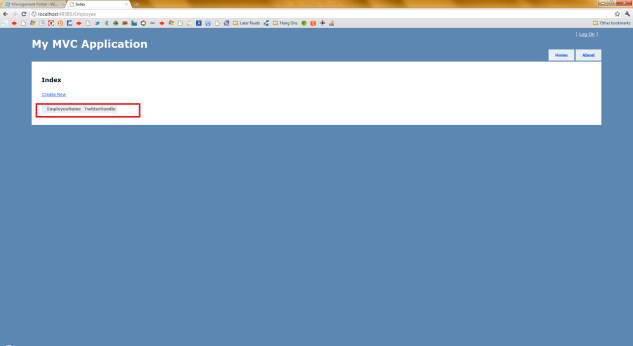
As you notice, the connection string has the same name as our custom DBContext; that is what magically tells the app runtime to know where to find the data context, as the config file is read at runtime. Also, the connetion string mentioned an explicit DB Name of Employee, which is not present in SQL Azure yet. So, what happens when we run our application & navigate to the requisite controller?
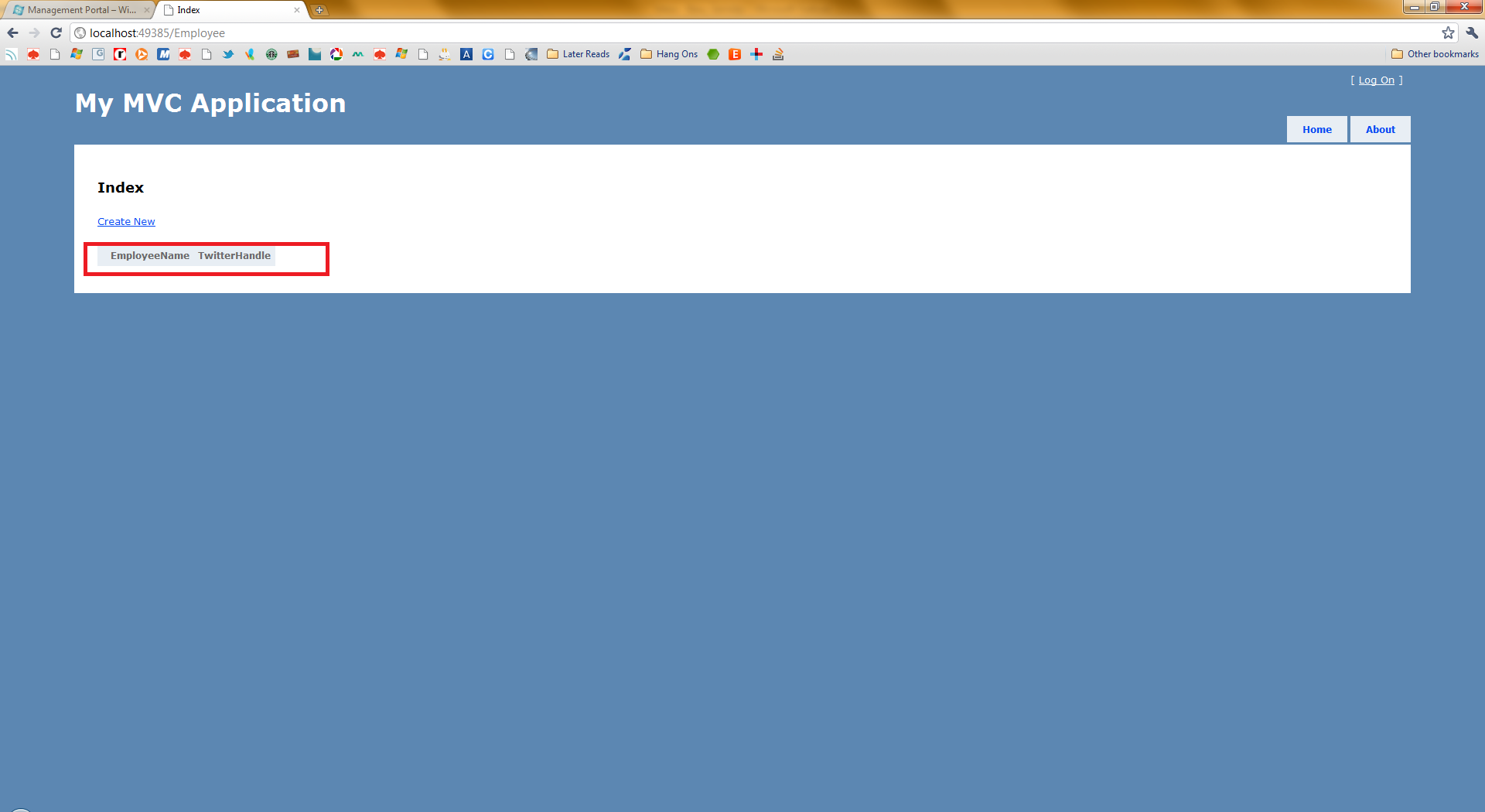
Employee List page

Wait, it didn’t blow up!! We got an empty list with table headers as Employee properties, but everything seemed to work. How come? It is through the magic of EF4.1! The runtime figures out that it needs a DB Context in SQL Azure and sees that there is no such DB. So, it goes ahead and creates the needed DB itself! The schema – why off course you defined it in the Model itself and reflections off an Employee object should have a one-on-one match with the DB table schema. So, no more DBAs needed, right? :). There is off course always a price to pay with abstraction; but this is pretty sweet out of the box & let’s you fine-tune DB structures as needed.

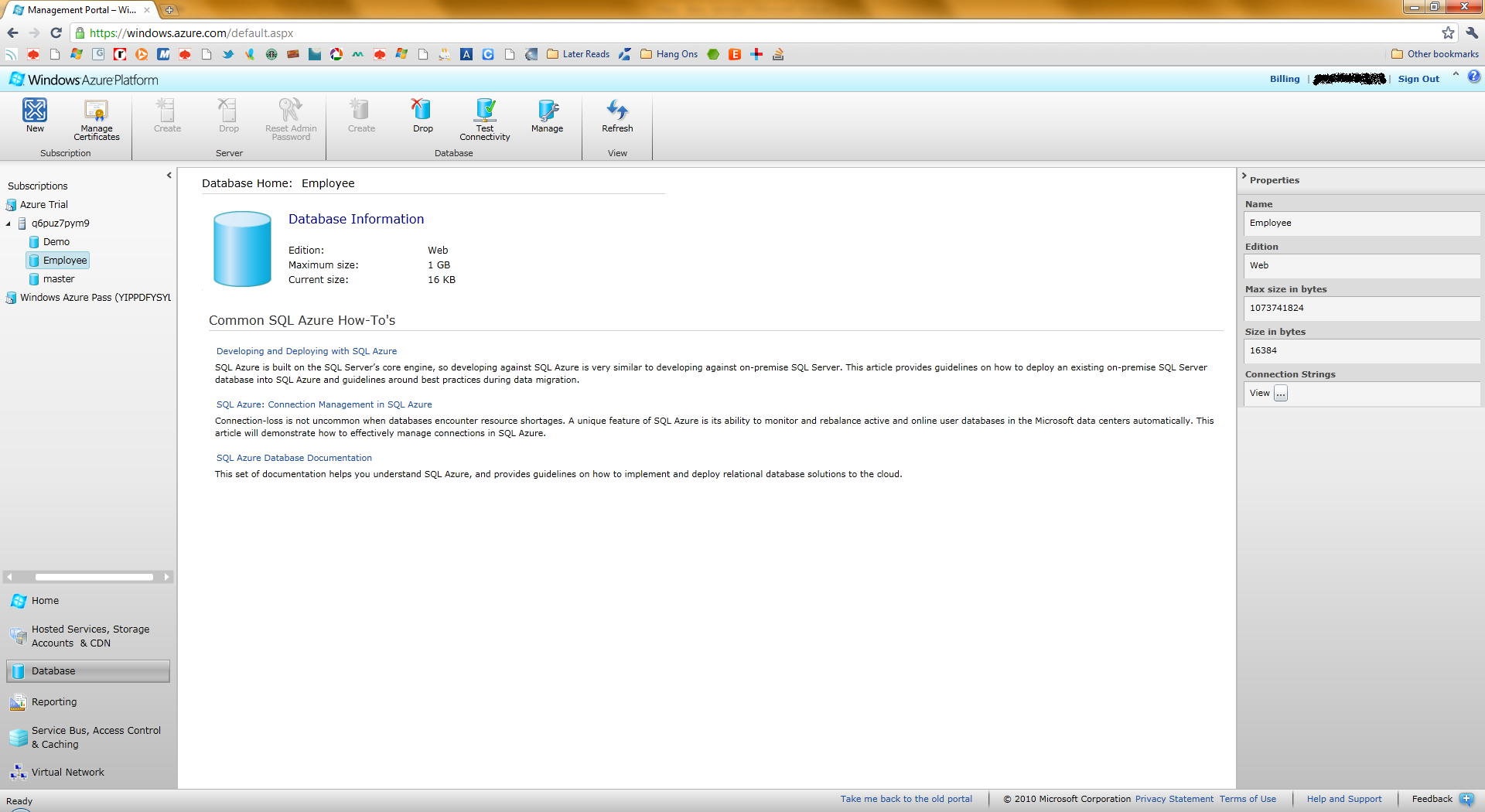
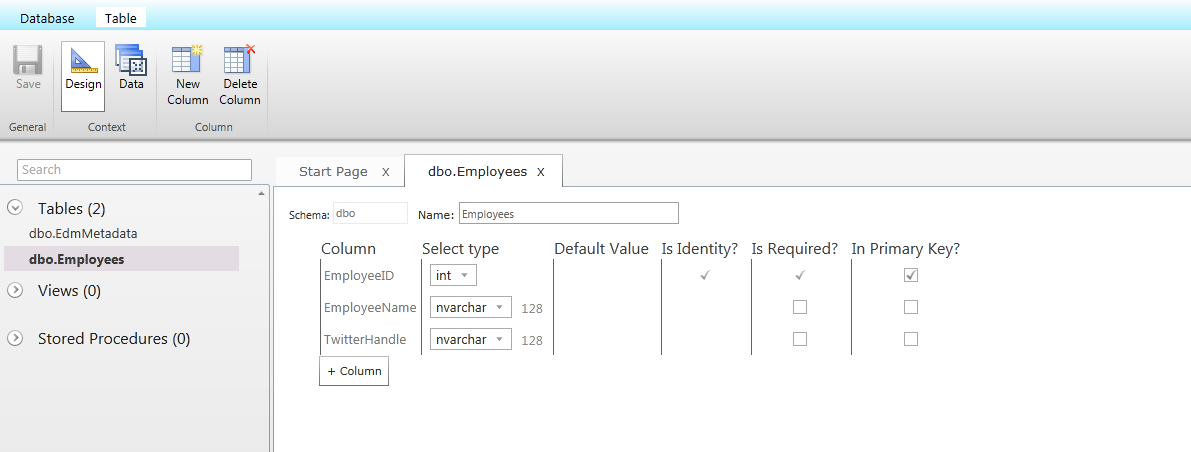
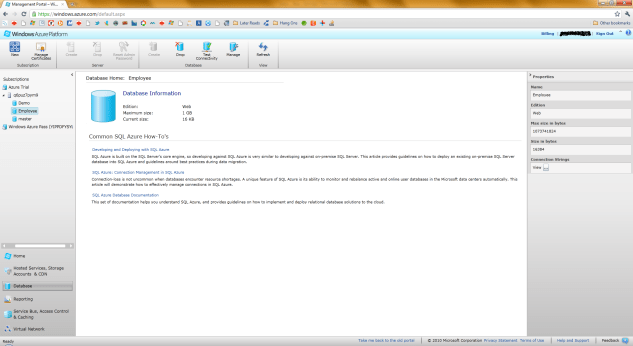
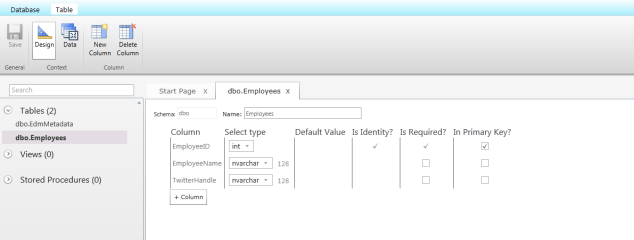
Running our application just once meant that EF tried to create the requisite DB as it needed per the DB Context. So, if we head over to Azure, we shall surely see the newly created DB called Employee. If we connect to the DB, we see two tables – one metadata & one actual Employee table. The schema is shown below; notice how it matches our Model as is:
Azure DB
SQL Azure DB Schema

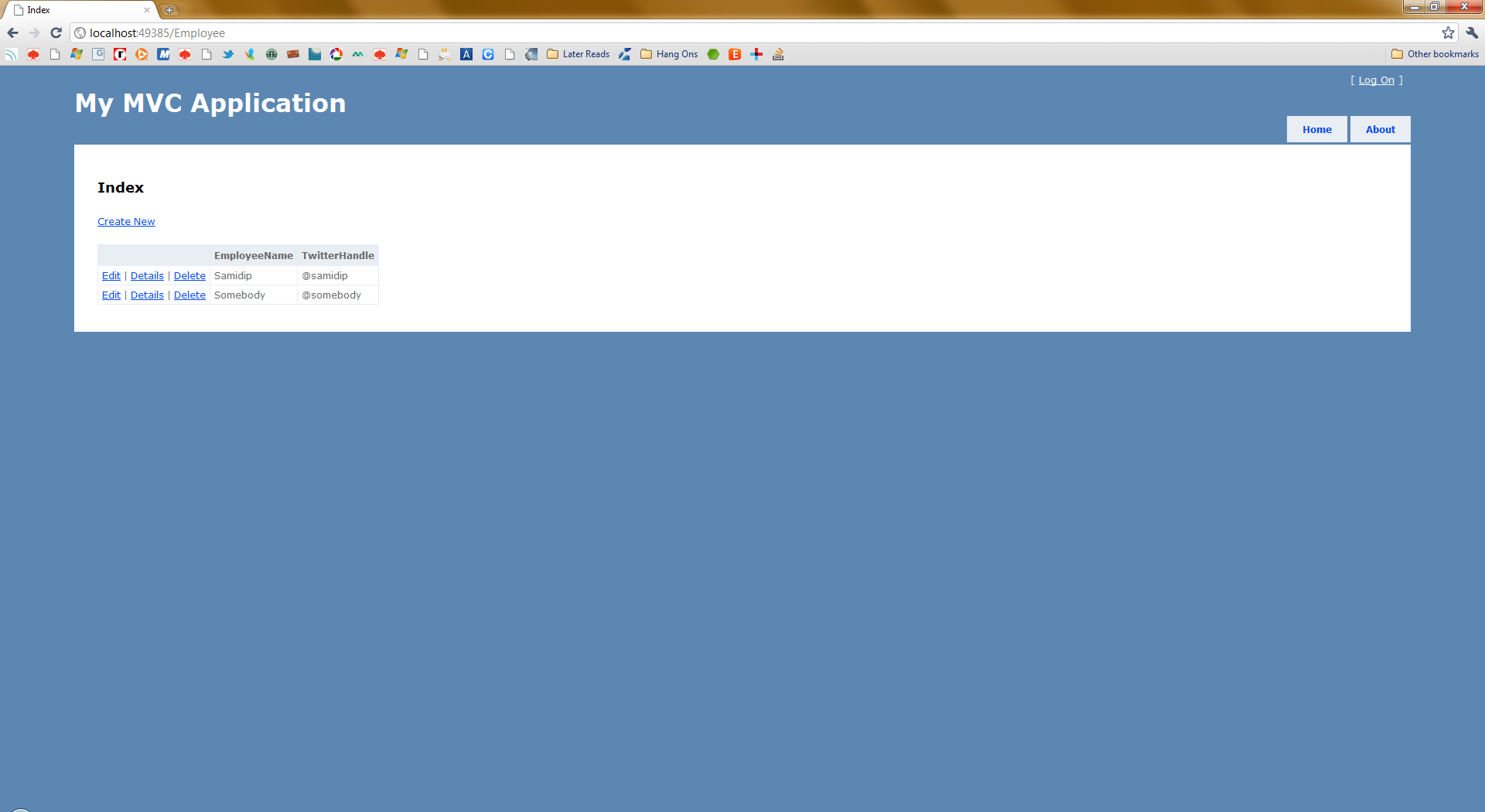
Now, we can implement the CRUD Action Results in our MVC Controller and our DB in Azure will allow for data manipulation. So, we can start adding, modifying & deleting records from the Employee table that was created in the DB.  So, couple of manipulations later, when we revisit the index view of our Employee controller, our view might look like the following, reflecting the data in the Azure Employee table:
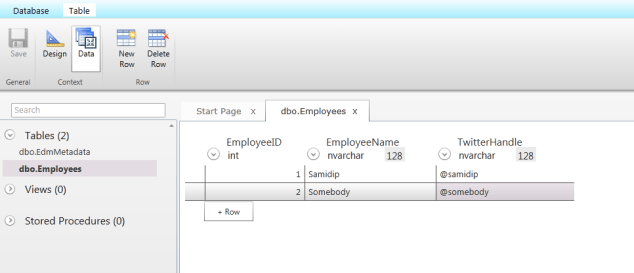
Azure Table Data
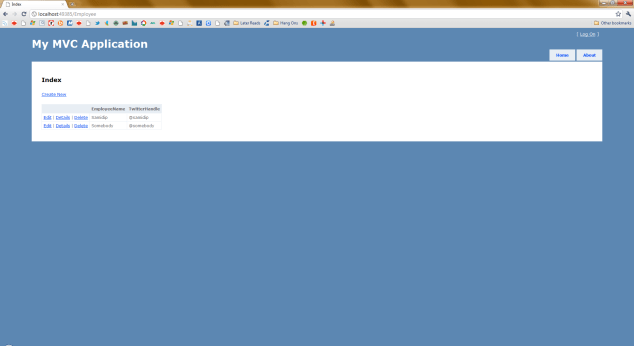
Employee List with Data

So far we have a super-easy MVC3 app that creates a DB in SQL Azure using EF4.1 and then using CRUD Action Results to manipulate data.  How about accessing this data out of DB through other applications? Sure we can make up a connection string to hit up our Employee table in SQL Azure DB; but guess what’s cooler? Exposing our data through OData !!

Windows Phone 7:

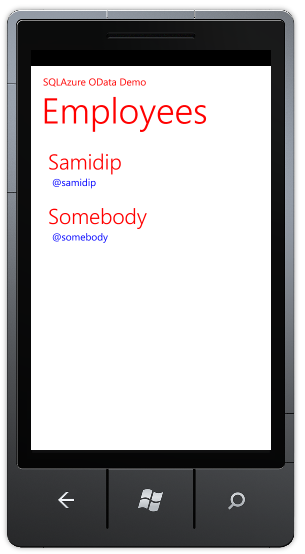
Having our data in SQL Azure has the unique advantage of extremely easy consumption from mobile devices. Though CTP and somewhat limiting in granularity, any DB in SQL Azure can be exposed out as an OData feed to allow for data consumption & updates. Please see my previous post (WP7: Say Hello to OData from SQL Azure) on how to consume the Employee data out of SQL Azure in Windows Phone 7. Our simple demo app looks like this:

OData Consumption from WP7


So, there you have it. A super-simple demo of having an MVC application use EF 4.1 to create & manage a DB in SQL Azure and then Windows Phone consuming the DB data using OData. Hope this was interesting.

Adios!