Mobile 101

Mobile is hot these days; cannot deny, can you? I believe we are in the middle of a huge transformation within our industry; computing is turning on a dime and form factors are changing dramatically.  At the forefront of this all, are some of the latest Mobile operating systems from the big software vendors. I’m going to go ahead and say that the big three are iOS, Android & Windows Phone 7. BlackBerry, WebOS & others are off course around; but in this day of cut-throat competition, you gotta be able to attract developers. This is where I think they are failing; but I’m a dork & could be completely wrong.

We, at Sogeti USA, are a software solutions company. We routinely take technology to its limits and do what makes sense for our clients. So, it makes sense that we would be good at providing Mobile solutions on the major platforms. From a client & developer perspective, the state of affairs is a little confusing. All three major platforms have their unique development paradigms, IDEs & toolkits.  It is almost the case where a single solution needs repeated to suit apps in the various mobile platforms. This may be seen as unfortunate, since it needs developers skilled in different programming languages; but unavoidable in the near future. May be someday, rich Mobile web with HTML5 standardization will the de-facto way of doing mobile applications; but we are far from it.

So, since we have a lot of expertise in all three mobile development paradigms, it was time for a little educative showdown! Two weeks back, myself & couple of my esteemed colleagues (namely Robert Omalley, Nihar Shah, Nathan Strandafer & Thomas Weeseling) got together and decided to teach a Mobile 101 class for everyone else. They had tons of experience in iOS & Android and I was obviously going to talk about Windows Phone 7. The idea was to have a session where we lay out the state of affairs, and then pick up each mobile platform individually and compare & contrast. This would be followed by a quick smack-down – the kind we have at most mobile conferences these days. We would all build the same simple Hello World type application in the different programming environments & compare the tools of trade. We had a decent turnout & it was a blast!

Now, this is Sogeti proprietary stuff; so I cannot share with anyone outside. For interested Sogetians, you may find the slide-deck here (requires Sogeti credentials). Please get in touch with us or your local Mobility leads if there are possible mobile opportunities you want to talk about.

To me personally, this was a good eye-opener for the various platforms and the development tools. One thing stood out for me; I may be biased though. The Windows Phone 7 ecosystem is the newest mobile kid on the block. However, in terms of development ease, it seemed to have the lowest barrier to entry. The toolsets are just awesome with Visual Studio, Expression Blend & managed Silverlight/XNA runtime.  MSFT has another comfort factor – the rich developer ecosystem around its .NET technology stack. As a result, there is no shortage of folks doing awesome cool stuff & then sharing their work as nugets/toolkits.

Anyway, I thought the session was really a lot of fun. Thanks a lot to everyone who attended or helped shape this talk.

Adios!
A classic goofup!

A recent Windows Phone 7 app submission came back with failed certification report. WHAT?? — but our code was perfect and we made sure all app certification guidelines were followed! Well yes, and every developer says so; we had a little laughable Silverlight goofup that was caught, just because the WP7 testing team was diligent.

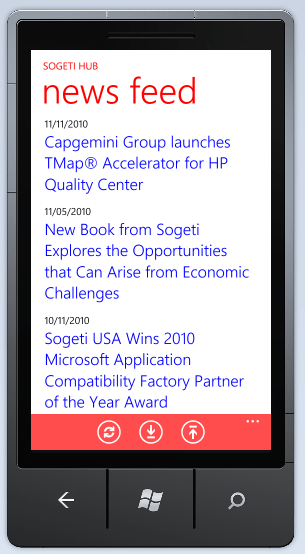
So, here are two screens with similar scenarios. Both of these use a Listbox that is bound to an Observable object collection behind the scenes:

News Item Feed

Panoramic Home Page


Error Description:

After the corresponding XAML page loads, click on the first item. This takes you to a details/some other page; hit back & select the first item again. Do you expect to be navigated like the first time? The answer is yes, right? The problem is that the first screen works; but the second does not!! Hmm .. how come? So, some investigation on Silverlight Data binding & event handlers revealed the differences in how the two XAML pages came together.

Page 1:

Data that was bound to the Listbox was fetched/refreshed on every page load; so listbox items were bound every time to the UI. Also, the listbox had a “SelectionChanged” event wired up to handle what to do when the user makes a selection. This worked because every time the listbox rebound itself to the underlying data, the past selection was blown away!

Page 2:

This was actually part of a panoramic view; however, the underlying technique was the same — listbox bound to an observable collection. So, why did this not work? Two reasons:

By default, the panoramic view templates set us up to use a ViewModel pattern, and that totally makes sense. In this case, the home panoramic view did not have dynamic data; and accordingly, we did not have any need to rebind the listbox every time. This was what was happening in the constructor:

 
  public HomePanorama() 
  { 
     InitializeComponent(); 
     this.DataContext = App.PanoramaViewModel;
     this.Loaded += new RoutedEventHandler(MainPage_Loaded);  
  }  

  private void MainPage_Loaded(object sender, RoutedEventArgs e) 
  {
     if (!App.PanoramaViewModel.IsDataLoaded) 
      {
          // Load data for the ViewModel Items. 
          App.PanoramaViewModel.LoadData(); 
      } 
   } 

And here was the main culprit! The listbox also had a “SelectionChanged” event wired up to handle user user clicks. So, on first page load after app launches, we had fresh data & the event fired as usual. On navigation back to the page though, there was no refresh of the underlying data. Also, this was a page served from the BackStack; not a fresh instantiation ! This meant that the XAML page’s Constructor was not fired; and control directly went to Page_Load. I found a very nice descriptive post on the same topic here:

http://devlicio.us/blogs/derik_whittaker/archive/2010/11/30/how-to-determine-if-a-view-is-loaded-off-of-the-backstack-in-wp7.aspx

So, the XAML page, on Back navigation, is being served up from the BackStack.  I believe unless the WP7 runtime sees allocated memory of close to 1MB, garbage collection does not kick in. So, the original Listbox on the XAML page is probably being brought right back from the BackStack memory. And, guess what? We never swapped the underlying dataset, since ViewModels for the Panoramic Home page are instantiated once on App launch; so the UI Listbox happily maintained a “Selected” object from the past selection! And the “SelectionChanged” event, true to its name, does not fire unless there is a change in selection. So, the user hitting the same listbox item got stuck the second time round. DUH !!!

Workaround:

There was a simple way to fix the issue at hand, that being no events fired. Everything else was as planned and rebinding of ViewModel data was unnecessary. So, the simple workaround was to use the “MouseLeftButtonUp” event wiring instead of the “SelectionChanged” on the listbox .. this event fires every time we have the user tap on a link, irrespective of whether we had a past selection or not! There is of course some need to check for null references as below:

 
   <ListBox x:Name="SomeMenu" ItemsSource="{Binding Items}" MouseLeftButtonUp="MenuItem_Selected" >
   ..... 
   </ListBox> 

   private void MenuItem_Selected(object sender, MouseButtonEventArgs e) 
   { 
      if (this.SomeMenu.SelectedItem != null) 
      { 
           SomeItemViewModel menuItem = (SomeItemViewModel)this.SomeMenu.SelectedItem; 
           
           if (menuItem != null) 
           { 
             // Do Stuff. 
           } 
       } 
   } 

Hope this was of some interest & useful if some other poor soul encounters this silly awkward behavior. Please drop comments if you have other ideas of getting around the issue.

Adios!

UPDATE:

So, in the process of finalizing another WP7 app, I realized that there is a downside to the above approach. The core problem still remains .. on a page where data is loaded into a listbox from a ViewModel binding that is not refreshed on every page visit, the regular “SelectionChanged” event handler will have the stupid issue of not firing on subsequent tries after the event fires for the first time. Instead, we hook up the “MouseLeftButtonUp” event handler to do the processing we wanted. The mouse-up event maps to when the user lifts his/her finger from the touch surface. This does add a little more processing on every mouse-up; but mostly works in firing the needed events every time.

However, if you are using a Listbox or a WrapPanel from the SL Toolkit, this has a downside. What if the user was simply swiping through the listbox items or horizontally scrolling through the WrapPanel tiles? Every flick will raise the mouse-up event and your handler will fire, potentially taking the user to a different XAML page!! Crappy, right? So, I had a simple workaround. Once I know that the user has actually made a selection and my handler is taking appropriate action, I clear the “SelectedItem” off from the Listbox binding. This way flicks or scrolls do fire the mouse-up; but we do not take action unless there is a selected item. Here is the code:

 
   private void some_MouseLeftButtonUp(object sender, MouseButtonEventArgs e) 
   { 
      if (this.ListBox.SelectedItem != null)  
      { 
          SomeObj selectedItem = (SomeObj)this.ListBox.SelectedItem; 
 
          if (selectedItem != null) 
         { 
            // Do stuff 
          } 

       // Clear the selection so that gestures do not raise this by mistake.  
       this.ListBox.SelectedItem = null; 
      }  
   } 

This may not be the best approach; but works & clears Marketplace certification. I will be very curious to know if others are getting around this in some other way. Please drop comments. Thanks!

Forget These Not

I have always been a WP7 platform fanboy (there, I said it!) since the CTP days & now I am really starting to enjoy the ecosystem that comes with it. People are doing so much phenomenal work that it is getting difficult to keep up all the new toolkits, frameworks and Nugets. All good stuff for health & future of the platform. Now, MSFT has to keep their side of the promise and keep the updates coming seamlessly without fragmentation.

Anyways, apps & a thriving Marketplace continue to be focus areas, with the WP7 Marketplace hitting 10K apps quicker than anyone else! I believe the entire lifecycle from an app’s inception to its final glory of being published to the Marketplace is incredibly well laid out. Developer delight seems apparent with the tools; however, we keep seeing questions when it comes to submitting applications for certification & publication. Having gone through the process a few times, let me take a stab at laying down a few things that one just should not forget. There are lots of other blog posts on this topic .. Bing around; these are my sanity checks:

  • The App Certification Requirements are written clearly and leave little room for ambiguity (ahem, no pun intended). READ READ READ!
  • Iconography: This one goes without saying. If you are lousy with your graphics, users may feel the same way about your app, even if it is a million-dollar idea. Seek help from a graphics designer friend if you have one; or make friends with GIMP or PAINT.NET. MSFT is also particular about Pixels & DPI. It has helped me having all my imagery in one folder so that I am not looking around during app submission.
  • Back Button: This happens to be one of the biggest reasons apps fail certification for the first time. So, Check, Check & Check. The good news is if you are not doing anything special in canceling the back event handler stack or eating up the event, you should be fine. By default, all your XAML pages will navigate backwards and most message boxes/toolkit popups will hide on Back. Just be aware that you cannot break the kind of navigation WP7 users are used to when they hit the Back button. From your first page, hitting Back should always exit the app.
  • Pay particular attention to requirements if your app is using Location Services & Push Notifications. User’s privacy is important to all of us who make mobile applications; give them ways to opt out within the app and also don’t break any OS level permissions.
  • If your app involves fetching data that may take a little bit, make sure you free up the main UI thread so that user interaction is not hampered; this goes for any Silverlight application I guess. Both WebClient & HttpWebRequest classes make it easy to assign a delegate for processing response asynchronously.
  • There were some recent changes to certification policies; check the latest from App Hub. Even though it is optional now, I believe it is always a good idea to provide a contact us/feedback mechanism for the users of your app. This helps in people not randomly posting awkward reviews; but rather reaching back to the developer to provide feedback .. remember, users are not evil; we just need to make software worth their dollar. Also, as an ISV, it may help having a dedicated site if possible; listing the apps you have live in the WP7 Marketplace and acting like a vendor in providing support/updates.
  • App Hub portal for submitting apps is a Silverlight Web application. Although Silverlight works just fine in most browsers, there are important steps as you submit your app; I believe IE9/IE8 provide the smoothest experience.

So, there you have it. It does not take much more than common sense and careful reading to clear WP7 Marketplace Certifications and have your app published. What’s holding you back?

Adios!