Flashback to Mix 2010. Microsoft is demonstrating various aspects of the newly announced Windows Phone 7 platform, since Mobile World Congress was merely a curtain raiser. A big focus is the power of Silverlight and how Mobile development would be a breeze with the tools provided. I got to look up who it was; but someone from Microsoft demonstrated making a Windows Phone 7 Twitter client in mere 8 minutes!! Exaggeration, you say. Well, turns out, if you know the Twitter Search API and how to make asynchronous HTTP Get calls in Silverlight, it may not be that far off. I was recently adding Twitter integration to an app, while trying to preserve the familiar look & feel. Let’s give ourselves 20 minutes, shall we? Yes, this is possible.
First, what kind of UI are we looking for? I thought a simple scrolling list of tweets should do, along with Search functionality. Mind you, here we are ONLY doing a tweet reader based on Twitter’s public Search feed; no way for users to sign on or post tweets from one’s account. If you are wanting to the next step in Twitter integration with authentication and ability to post tweets, may I point you to Twitter’s extensive RESTful API and its documentation as below:
http://dev.twitter.com/doc
For our purposes of doing public Searches against Twitter, the simple Search API below works perfectly:
http://dev.twitter.com/doc/get/search
The request to the API is an HTTP GET to an URL passing requisite parameters and the response is JSON/Atom; doesn’t get simpler than that .. but hey, we are building the 20 min app, remember? The Search API allows us to combine most Boolean operators and provides for search capabilities containing word(s), from/replies to user, mentions, hashtags etc. You get to pick what you want for your app.
Ok, so here’s the UI we are shooting to have:
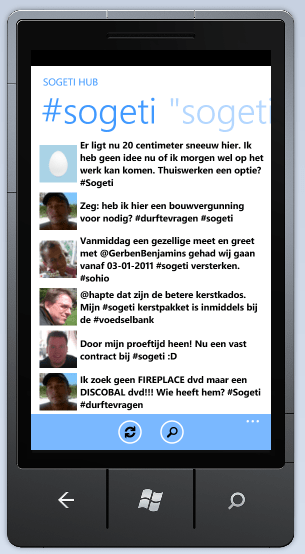
Twitter Client Pivot Page 1

Twitter Client Pivot Page 2
Twitter Client Pivot Page 3
Note that we preserve Twitter’s colors for branding and user familiarity. And yes, since you asked, the Hex for Twitter blue is #4099FF!!
Everything in Silverlight has to relieve the main UI thread from waiting so that user interaction is not hampered. This holds true for HTTP Gets where we have to fire off the call and then wait on a different thread to process the response. Luckily, you need not spin off any threads of your own. Simply use the WebClient class, and assign an ASYNC event handler to process responses when available. This does work out well if trying to show a progress bar; you know exactly when to show & hide. So, here is how we fire off a Search request. This particular request is searching for tweets containing a hashtag; but others would similar as per the API documentation above.
private void FireHashSearch()
 {
 // Build up the Search URI to find tweets containing #sogeti.
 string searchQuery = String.Format(_TwitterSearchBaseUrl, "%23Sogeti", _MaxSearchResultsCount);
 Uri searchQueryUri = new Uri(searchQuery, UriKind.Absolute);

 // Use the WebClient to go across to Twitter Search API asynchronously.
 WebClient searchTwitter = new WebClient();
 searchTwitter.DownloadStringCompleted += new DownloadStringCompletedEventHandler(TwitterHashSearch_DownloadStringCompleted);
 searchTwitter.DownloadStringAsync(searchQueryUri);

 // Display Progress bar.
 this.ProgBar.Visibility = System.Windows.Visibility.Visible;
 }
The two constants used above are set as follows:
private const string _TwitterSearchBaseUrl = "http://search.twitter.com/search.atom?q={0}&rpp={1}";
private const int _MaxSearchResultsCount = 50;
Now, the response is Atom, which is just a certain form of XML. So, how do you parse? Coming from XML/XSLT background, you might be tempted to think XMLDocument & XPath are the easiest ways to parse. Well, sure they are; but the part of the .NET Framework in Silverlight does not have support for them. Huh? Well, relax. LINQ can be your best friend and is also one of the easiest ways to parse such a response. It also gels really well with Silverlight’s data binding model. More on that in a bit. But, first, let us inspect the response and see what we are interested in. Turns out, 3 small repeating pieces. So, let us write a small class to support them and also aid in our binding.
public class Tweet
 {
 public string MsgURL { get; set; }
 public string Title { get; set; }
 public string Avatar { get; set; }
 }
Now that we know which pieces of data we need, it is also easy to set up the display. Essentially, a listbox with a data template and a progress bar above (yes, the classic WP7 dots that run across your screen). Put this in any generic Silverlight container you want .. Grid, Canvas or Stackpanel.
<ProgressBar Foreground="Red" x:Name="ProgBar" Visibility="Collapsed"
 IsIndeterminate="True" Height="4" Width="460"
 HorizontalAlignment="Left" VerticalAlignment="Top" Margin="0,136,0,0"/>

<ListBox x:Name="lstSogetiHashResults" Background="White" Margin="0, -15, 0,5"
 ItemsSource="{Binding}" ScrollViewer.HorizontalScrollBarVisibility="Disabled">

 <ListBox.ItemTemplate>
 <DataTemplate>
 <Grid HorizontalAlignment="Stretch" VerticalAlignment="Bottom" >
 <Grid.ColumnDefinitions>
 <ColumnDefinition Width="Auto"/>
 <ColumnDefinition Width="*"/>
 </Grid.ColumnDefinitions>

 <Image Source="{Binding Mode=OneWay, Path=Avatar}" Grid.Column="0"
 Margin="5" Width="75" Height="75"
 HorizontalAlignment="Stretch" VerticalAlignment="Stretch"/>
 <TextBlock Text="{Binding Mode=OneWay,Path=Title}" Grid.Column="1" Foreground="Black" Margin="1,3,0,3"
 TextWrapping="Wrap" HorizontalAlignment="Stretch" VerticalAlignment="Center"
 Style="{StaticResource PhoneTextSmallStyle}" FontWeight="SemiBold"/>

 </Grid>
 </DataTemplate>
 </ListBox.ItemTemplate>
</ListBox>
Now, our UI is set up and know what data elements to bind to. Here’s the code to parse the response and data-bind. Notice how we hide the progress bar once we have a response.
private void TwitterHashSearch_DownloadStringCompleted(object sender, DownloadStringCompletedEventArgs e)
 {
 if (e.Error != null)
 {
 Tweet error = new Tweet();
 error.Title = "Oops, something went wrong!";

 // DataBind.
 List<Tweet> nothingList = new List<Tweet>();
 nothingList.Add(error);
 this.lstSogetiHashResults.DataContext = nothingList;
 }
 else
 {
 // Grab response.
 string results = e.Result;

 // Remove namespace.
 XDocument xmlTweets = XDocument.Parse(results.Replace("xmlns=\"http://www.w3.org/2005/Atom\"", String.Empty));

 // LINQ to parse.
 var tweets = from entry in xmlTweets.Descendants(XName.Get("entry"))
 select new Tweet
 {
 Title = (string)entry.Descendants(XName.Get("title")).First(),
 MsgURL = (string)entry.Descendants(XName.Get("link")).First().Attribute("href"),
 Avatar = (string)entry.Descendants(XName.Get("link")).ElementAt(1).Attribute("href"),
 };

 // DataBind.
 this.lstSogetiHashResults.DataContext = tweets;
 }

 // Hide Progress bar.
 this.ProgBar.Visibility = System.Windows.Visibility.Collapsed;
 }
So, there you have it; a quick Twitter reader. You may decide to go a little fancy and add some more requisite pages as a part of a smooth flowing Pivot Control. The application bar at the bottom refreshes the present feed being displayed or allows the user to search. The WP7 application icon pack & a host of other dev resources can be found @ Jeff Blankenburg’s blog here : http://www.jeffblankenburg.com/page/Windows-Phone-7-Resources.aspx.
The refreshes call out to the same Twitter API; but with a “Since_ID” param to update the feeds. The Search pages simply throws in a textbox, a fancy button (ok, bit of Blend work there; you don’t have to in 20 mins) and the same Twitter search API call simply sends along the user entered search criteria as a parameter.
Hope this was of some interest.
Adios!



 Modern Developer Ramblings