Oversimplified WP7 Browser Navigation Stack

This post is in response to a question someone asked in the Microsoft App Hub forum and because I was plain curious. That thread is here: http://forums.create.msdn.com/forums/t/72708.aspx

So, in Windows Phone Silverlight programming, we have access to a WebBrowser control. This is essentially a stripped-down version of the IE browser in the OS and can be slapped onto any XAML page. The WebBrowser control can then be asked to load any webpage (or local HTML), including ones with JavaScript interaction; it does not seem to handle HTTPS certificates too well though.

Now, what if you use the WebBrowser control within your XAML page to display web content & the user clicks on a link on a webpage? Yes, you guessed it right; the WebBrowser control loads the destination page. What if the user wants to come back to the first webpage? Hmmm .. this is tricky. Unlike the full-blown IE, the WebBrowser control does not maintain a backstack, as far as I can tell. Also, if you try overriding the hardware WP7 Back button, you might be walking on the edges of app certification requirements; the hardware button is supposed to take the user back out of the XAML page and onto the last history in the app page backstack; not to the last webpage loaded by the WebBrowser control!

So, it seems like a custom solution is called for when needing to support navigation in a WebBrowser control. Following is what I whipped up rather quickly; so BIG disclaimer – this custom browser backstack does *not* work for anything but the simplest of web pages. No postbacks or Jscript or cookies or URL params are supported. You may off course take the concept and extend this to your needs.

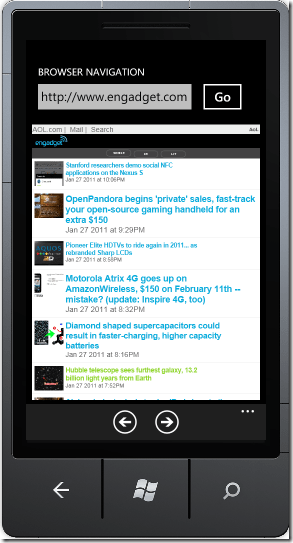
Here is how the quick demo app looks like. We take URL inputs from the user & display the page within a WebBrowser control embedded in the page. The user is free to click on any links on web pages to navigate elsewhere, with the destinations URLs loaded in the same place. Also, we throw in two Software navigation buttons in the App Bar, for supporting Forward/Back navigation of the content displayed.
Nav

Now, here’s the little requisite code. Since we are creating a custom backstack, some data constructs are needed; at a minimum a List/Dictionary data structure to remember the URLs for forward & backward navigation. Again, this was my way of doing things; feel free to trail braze with your own logic.


  List<string> URLStack = new List<string>();
  int position = -1;
  bool navigationButtonClicked = false;

The WebBrowser does raise events, which give us the opportunity to capture the URL of the page it is loading. We do, however, need to differentiate between when the user simply clicked on a link versus when he hit the navigation buttons.


private void MyWebBrowser_Navigated(object sender, System.Windows.Navigation.NavigationEventArgs e) 
 { 
     if (this.MyWebBrowser.Source != null && !this.navigationButtonClicked)
     {
       if (position == 0)
       {
         string firstURL = this.URLStack[0];
         this.URLStack.Clear(); 
         this.URLStack.Add(firstURL);
       }
      this.URLStack.Add(this.MyWebBrowser.Source.ToString()); 
       position++;
     }

    this.navigationButtonClicked = false; 
  }

And the Back & Front navigation buttons have the following code behind their event handlers. You may update the URL Textbox accordingly.


private void Back_Click(object sender, EventArgs e)    
 {  
     this.navigationButtonClicked = true;    
     this.MyWebBrowser.Navigate(new Uri(this.URLStack[position - 1].ToString()));    
     position--;    
 }

private void Forward_Click(object sender, EventArgs e) { if (this.URLStack.Count > position + 1) { this.navigationButtonClicked = true; this.MyWebBrowser.Navigate(new Uri(this.URLStack[position + 1].ToString())); position++; } }

That’s it; a simple browser navigation example with custom URL stack. Hope this was somewhat useful.

Adios!
A Happy Bug

Recently, a small issue in Windows Phone 7 development drove me nuts for a day .. don’t get me wrong, I love doing WP7 dev; just got frustrated with not being able to change a small setting. Here’s the story..

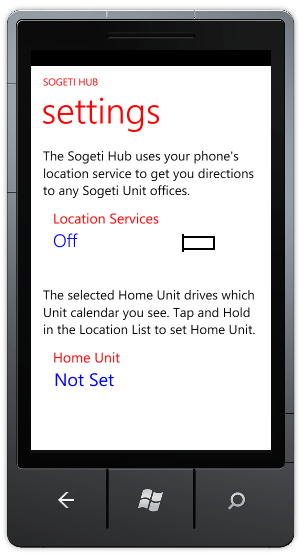
Any WP7 application that uses Location Services has to have permissions from the user, as per app certification guidelines. Makes sense. Also, one needs to provide the user with an in-app setting to turn Location Service use on/off, without affecting the master switch. Also makes sense. So, many apps are resorting to using the Silverlight WP7 Codeplex Toolkit controls to provide such a Settings screen. There is a very handy Toggle Switch to turn a setting on/off .. just like what you’ll find in the rest of the OS. So, this becomes a natural choice for the Location Service use setting. Following is the Setting screen in the Sogeti Hub WP7 app, with the real white theme and an altered wheat background :

Toggle Switch Head lost in background

Toggle Switch Head lost in background

Toggle Switch Head shows against colored background

Toggle Switch Head shows against colored background


A more in-depth use of the Toggle Switch is described here:

http://www.codebadger.com/blog/post/2010/11/05/WP7-Tip-of-the-Day-Silverlight-Toolkit-Toggle-Switch.aspx

Now, here’s the little issue — when pitted against an all-white page background, the slider head of the Toggle switch could not be distinguished in the emulator window!!; in other words, got lost in the white back color. Now why not change the white background? .. because the rest of the app has the similar look & feel and a different color/transparency would be jarring.

The Toggle Switch is a rather flexible one though.. one may use highly customized templates for header & content ; assign event handlers to the user turning the switch on/off etc. However, I could not find a setting that would allow me to manipulate the look of the switch itself. Background and Brush Silverlight usuals were not handy. Now, I know what you’re thinking .. it’s a codeplex toolkit; get the code and manipulate. Yes, true .. but I was reluctant to try messing with the pre-built switch just to be able to draw a border. It should just work, right? Eventually, would probably have tried writing my own toggle switch; but a quick look at my HD7 WP7 phone revealed that with a Light background theme, the same toggle control rendered just fine !! Were there differences in what the OS was using versus what the Codeplex code had?

Then, just out of curiosity, took my app and deployed it to the phone with a light background theme. Voila .. it works! The Toggle Switch shows up exactly as it should with a black border around the switch head, which distinguishes it from the rest of the page content. So, it has always been working .. why was the emulator lying? May be a little issue in rendering with the Silverlight toolkit controls. Nonetheless, thought I would blog to save some other soul a day of frustration.

Sanity returns to earth .. ha ha.

Adios!

Your world ..er, Notebooks in Sync

So, you use OneNote on your PC and sync your notes through SkyDrive for ease of access and in-browser editing. Now, you got yourself a shiny new Windows Phone 7 .. oh, it has Office 2010 Mobile and all of life would be in sync between your PC and cloud. How enticing! Well, that was actually me back in November last year. Turns out, much of that is true; except that it needs a bit of tweaking. And Microsoft does not provide a lot of documentation around this hidden handiness.

So, here’s what you get out of the box. The Office Mobile app on a Windows Phone 7 has a default notebook that has a couple of pages built in about using OneNote. To sync with the cloud, one has to hit “all” to see all the pages in the default notebook and then try the “refresh” app icon. This creates a “Personal (Web)” folder in one’s SkyDrive My Documents section, which contains all the pages from your phone’s notebook. Voila, you think! And yes, you are right; from then on, you can edit the pages of the default notebook either from the phone or SkyDrive and it will be synced effortlessly.

But wait; what about the existing notebooks/pages you already have in the cloud or on your PC? Ah, glad you asked. As I was trying this for my notebooks, it took me a little trial & error to figure out how to work it. Here’s what makes syncing possible with existing notebooks on SkyDrive:

  • You may choose to keep the default “Personal (Web)” notebook on the phone and on SkyDrive or you may choose to delete & replace with your own existing notebook(s). However, you cannot delete the “Personal (Web)” notebook until you have another notebook which acts as the default placeholder for new pages. Tap & Hold notebooks on the phone to set one as default.
  • WP7 Office only allows you to create new pages within a notebook; not entire notebooks.
  • Existing notebooks in the cloud have to be opened through the Office Mobile client before they can be synced with the phone. Simply putting them in the “Personal (Web)” folder in SkyDrive will not do the trick.
  • Navigate to Internet Explorer settings on the phone and make sure “Website Preference” is set to “Mobile version”. This prevents any Office documents from opening up within the browser using the web-version of the Office suite.
  • Once you navigate to the notebooks you want to sync with the phone, simply tap on the notebook in IE; this opens it up in the Office Mobile client with the given IE settings. Repeat for each notebook you want to sync.
  • That’s it! Office Mobile now has knowledge of your notebook in the cloud and a simple “Refresh” pulls down all pages.
  • Edits made to the notebook/pages now remain in sync between PC, browser & phone. One happy world.

How about my Word, PowerPoint & Excel documents in SkyDrive? Can I keep them in sync on the phone as well? Unfortunately, you are asking for little too much for now. This is true for SharePoint document repositories; not for SkyDrive documents as of the first WP7 release. Microsoft has said that desired functionality is coming; some release later in 2011. We shall see ..

Hope this was helpful. Please comment if any you have devised better ways of keeping Notes in sync on Windows Phone 7s or just put down your thoughts.

Thanks & Adios!